Voice Agents
Guide to configuring and testing voice apps with browser and phone calls in Cosmos
Updated 2026-11-03
Verified 2026-11-03
Overview
A voice app lets users talk to a Cosmos agent in real time, from the browser or over the phone. Cosmos connects a speech-to-text (STT) provider, your agent, and a text-to-speech (TTS) provider into one low-latency pipeline. The agent starts speaking as soon as the first part of its answer is ready.
- Browser calls (WebCall) — allow microphone access and start talking.
- Phone calls (TeleCall) — call a phone number through your organization's calling provider.
- Configurable voice — choose STT and TTS providers and a voice, and tune turn-taking, interruptions, and idle handling.
Prerequisites
| Requirement | Details |
|---|---|
| Deployed agent | See Building & Testing Agents. |
| Browser with a microphone | A current Chrome, Edge, or Firefox with microphone permission. |
| STT and TTS providers | Configured for your organization by an admin. See Bring Your Own Token. |
| Calling provider (optional) | Needed for phone calls. |
Step-by-Step Setup
Step 1: Create a voice app
- Open Apps and click Create New.
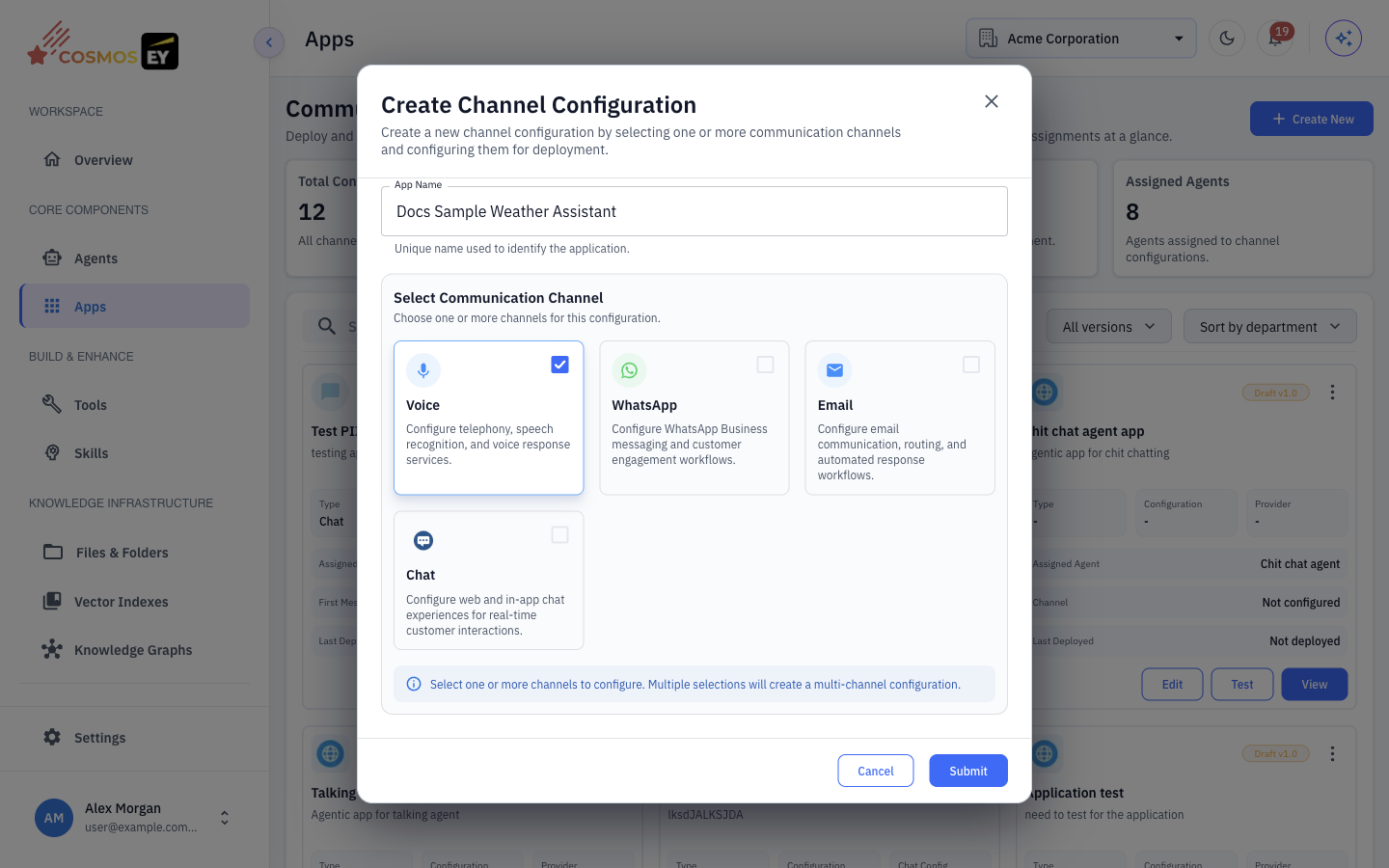
- Enter the App Name, choose Voice under Select Communication Channel, and click Submit.
- In Application Details, choose the Orchestrator Agent and Version.
Step 2: Choose speech providers
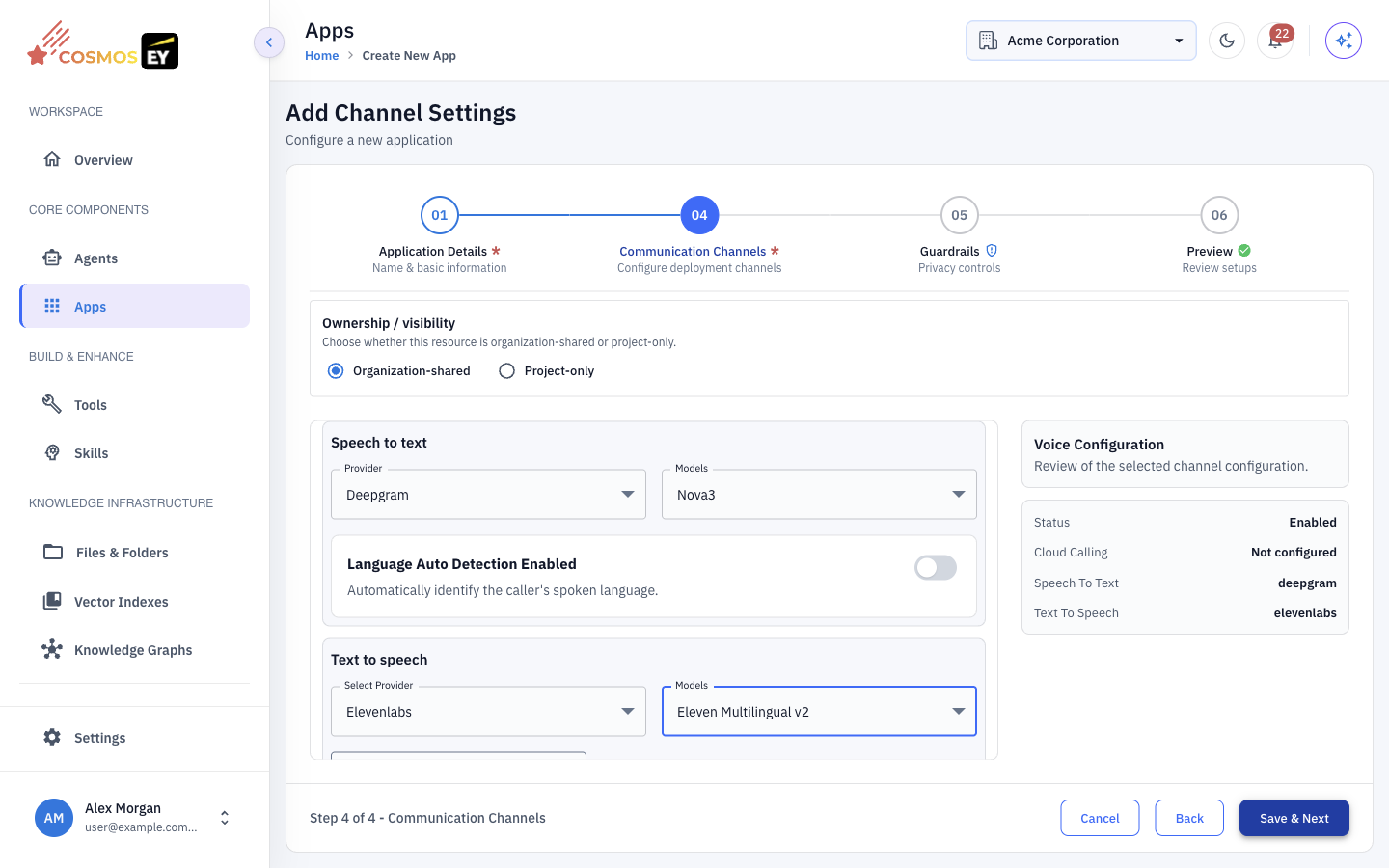
In the Communication Channels step:
- Speech to text — choose the provider and model, and the language. Some providers can detect the language automatically.
- Text to speech — choose the provider, model, and voice. Some providers also offer a speed setting.
- Cloud Calling — choose a calling provider if you want phone calls.
The providers you can choose depend on your organization's configuration. Commonly used providers include:
| Type | Providers |
|---|---|
| STT | ElevenLabs, Deepgram, Smallest, Google Cloud |
| TTS | ElevenLabs, Smallest, Sarvam, Google Cloud |
Step 3: Set the greeting and audio
- First Message — what the agent says when the call connects, for example "Hi, how can I help you today?"
- Audio Enhancement — optional Background Audio (with looping and volume) and Noise Cancellation with an enhancement level.
Use Voice Preview to hear the selected voice.
Step 4: Tune call behavior
These settings apply to new calls for this app version. A call keeps the settings it started with.
Speech detection and turn completion
| Setting | Default | What it controls |
|---|---|---|
| Enable VAD | On | Voice activity detection: deciding when the caller is speaking. |
| VAD confidence | 0.7 | How sure the detector must be that speech is present (0–1). |
| VAD minimum volume | 0.6 | Minimum audio level that counts as speech (0–1). |
| VAD start (seconds) | 0.2 | How long speech must last before it counts (0–2). |
| VAD stop (seconds) | 0.2 | How long silence must last before speech is treated as stopped (0–3). |
| Turn completion | Smart Turn | Smart Turn (requires VAD) predicts when the caller has finished; Timeout waits for a pause. |
| Speech timeout (seconds) | 0.6 | Pause length that completes a turn. |
| Smart Turn fallback (seconds) | 3 | Longest wait before Smart Turn completes a turn anyway. |
If you turn VAD off, transcription starts a turn and the speech timeout completes it.
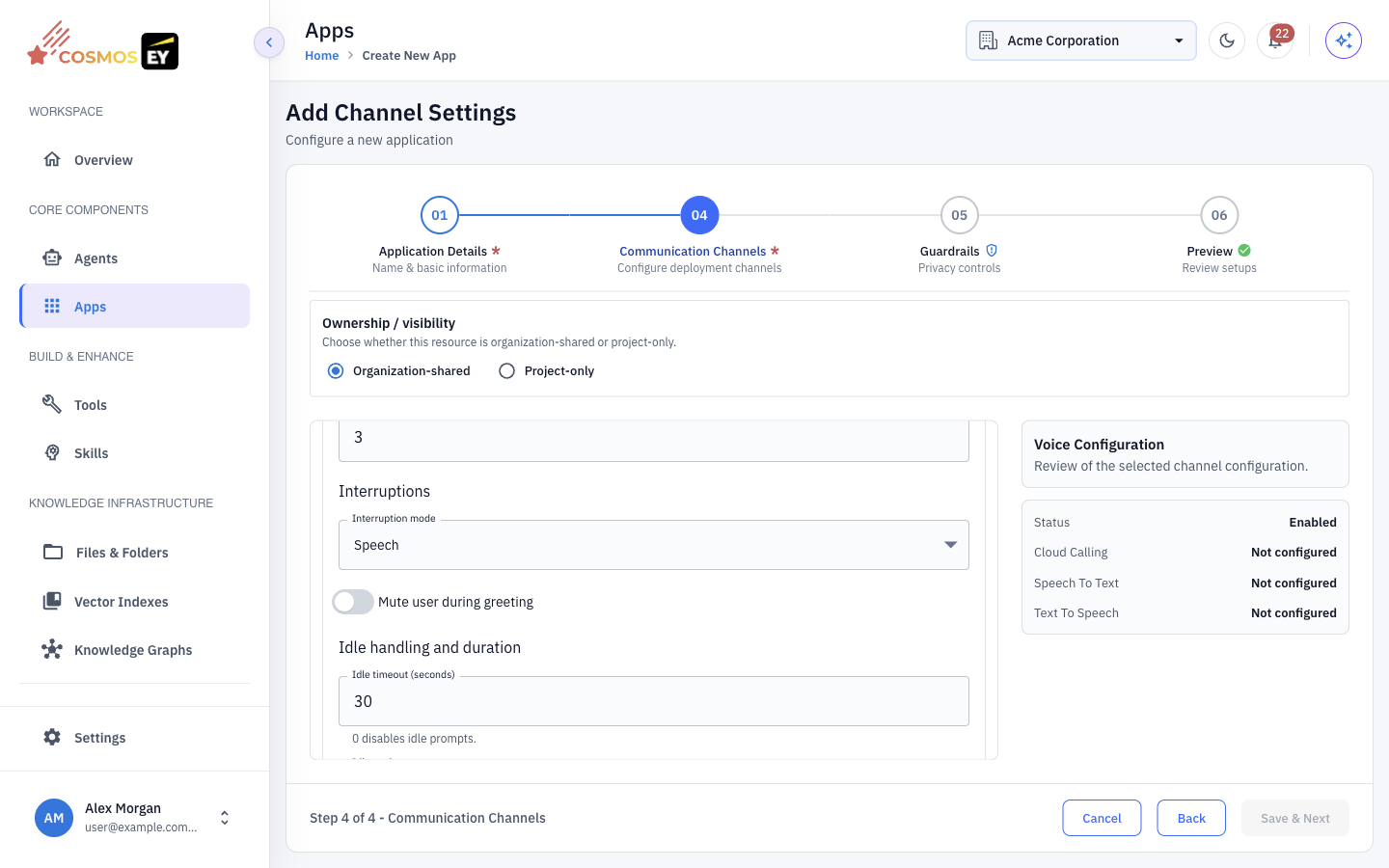
Interruptions
| Setting | Options |
|---|---|
| Interruption mode | Speech (the caller can interrupt by speaking), Minimum words (the caller must say a minimum number of words), or Disabled (queue speech) |
| Mute user during greeting | Ignore the caller while the first message plays |
Idle handling and duration
| Setting | Default | What it controls |
|---|---|---|
| Idle timeout (seconds) | 30 | Silence before the agent sends an idle prompt. 0 turns idle prompts off. |
| Idle retries | 2 | How many idle prompts are sent before the call ends. |
| Idle prompts (one per line) | Built-in prompts | Up to 10 prompts. The last one repeats if there are more retries than prompts. |
| Goodbye message | Built-in message | What the agent says before ending an idle call. |
| Maximum call duration (seconds) | Hard limit on call length. 0 means unlimited. |
Step 5: Save and deploy
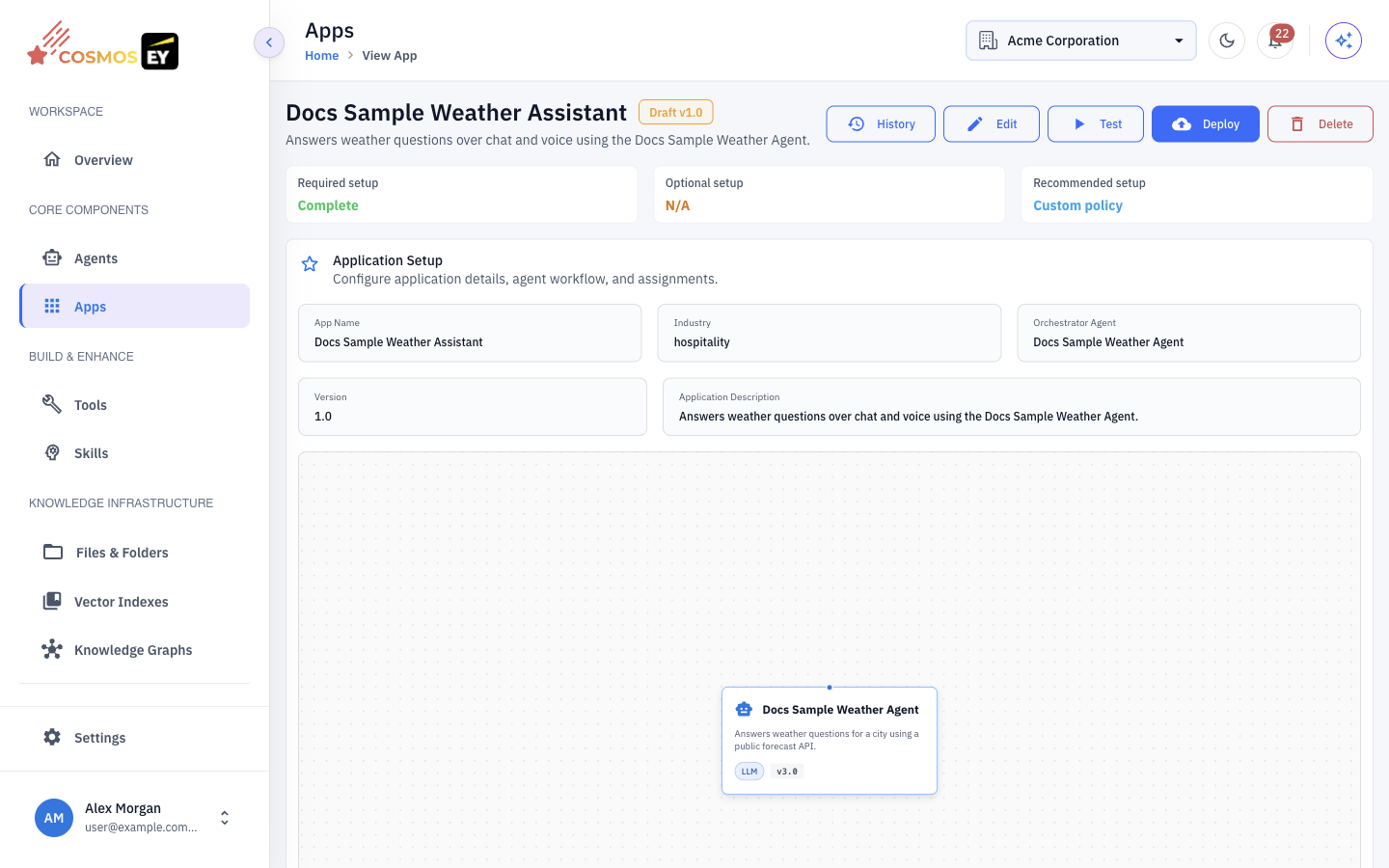
Review the app on Preview, save it, and click Deploy on the app's detail page.
Start a test call
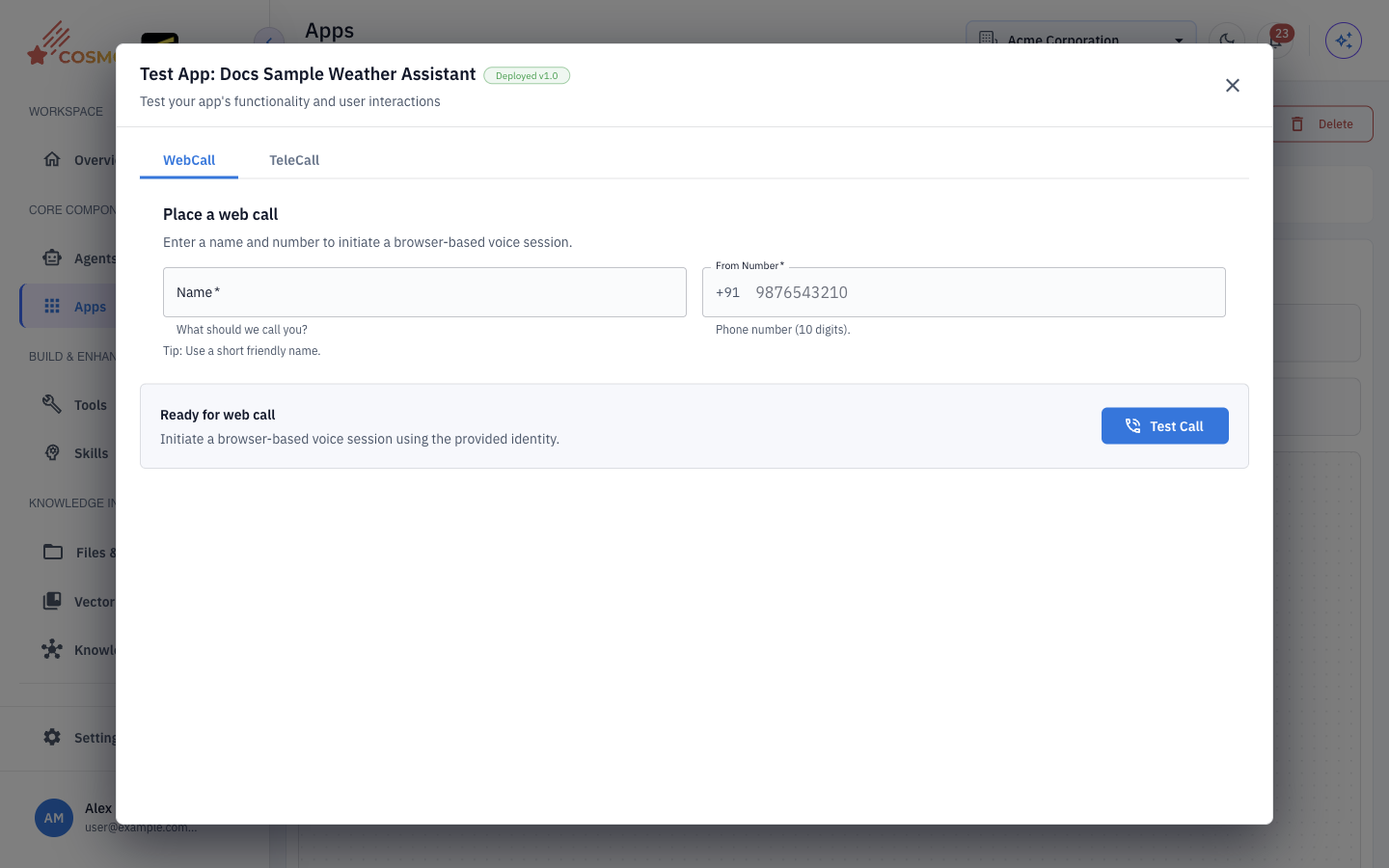
- On the app's detail page, click Test and choose Test Call.
- Pick a tab:
- WebCall — call from your browser.
- TeleCall — place a phone call through the calling provider.
- Click Test Call. Allow microphone access if the browser asks.
The call console shows:
- Conversation — a live transcript.
- Metrics — latency and timing for the call.
- Events — what happened during the call.
- Devices — microphone and speaker selection, with a keypad for sending tones.
- Session audio settings — change background audio, noise filtering, or the voice during the call. Changes are requested from the call and confirmed when the call accepts them.
How a Call Works
Voice call pipeline
SourceLoading diagram...
The caller's audio goes to the STT provider, the transcript goes to your agent, and the agent's reply is turned into speech by the TTS provider. Browser calls use WebRTC. Phone calls go through the calling provider and the same pipeline.
Troubleshooting
| Problem | Possible cause | Fix |
|---|---|---|
| Microphone access denied | The browser blocked the permission. | Allow microphone access from the address bar and reload. |
| Call stays connecting | The browser cannot establish the audio connection, often because of a firewall. | Check that your network allows WebRTC traffic, or try another network. |
| No audio from the agent | The TTS provider is missing or misconfigured. | Ask your admin to check the TTS provider. |
| The agent does not hear you | The STT provider is missing, or the language is wrong. | Check the STT provider and language. |
| The agent cuts you off | Turn completion is too eager. | Increase the speech timeout, or use Smart Turn. |
| The call ends early | Idle timeout or maximum duration is too short. | Increase Idle timeout or Maximum call duration. |
| Echo or feedback | The speakers are picked up by the microphone. | Use headphones or turn on Noise Cancellation. |
Tips & Best Practices
- Write a clear first message that tells the caller who they are talking to.
- Start with the defaults and change one setting at a time.
- Test with headphones to avoid echo.
- Set the language explicitly if your callers all speak one language; automatic detection can add delay.
- Review transcripts in Logs to spot recognition errors.