User & Organization Management
Guide to managing organizations, projects, members, roles, and access in Cosmos
Updated 2026-11-03
Verified 2026-11-03
Overview
Every resource in Cosmos, such as an agent, tool, app, or knowledge base, belongs to an organization. Access is controlled by roles: each member gets one or more roles that decide what they can see and do.
- Organizations are isolated workspaces. Members of one organization cannot see another organization's data.
- Projects group resources and members inside an organization, with their own roles.
- Users can belong to several organizations, with different roles in each.
- Roles bundle permissions. Cosmos provides shared roles and lets admins create custom ones.
Who manages what:
| Task | Who | Where |
|---|---|---|
| Members, roles, projects, and providers of your organization | Organization admins | User menu → Manage Organization |
| Creating organizations and managing all users | Platform administrators | Admin Configurations → Organizations and Users |
Switching Organization and Project
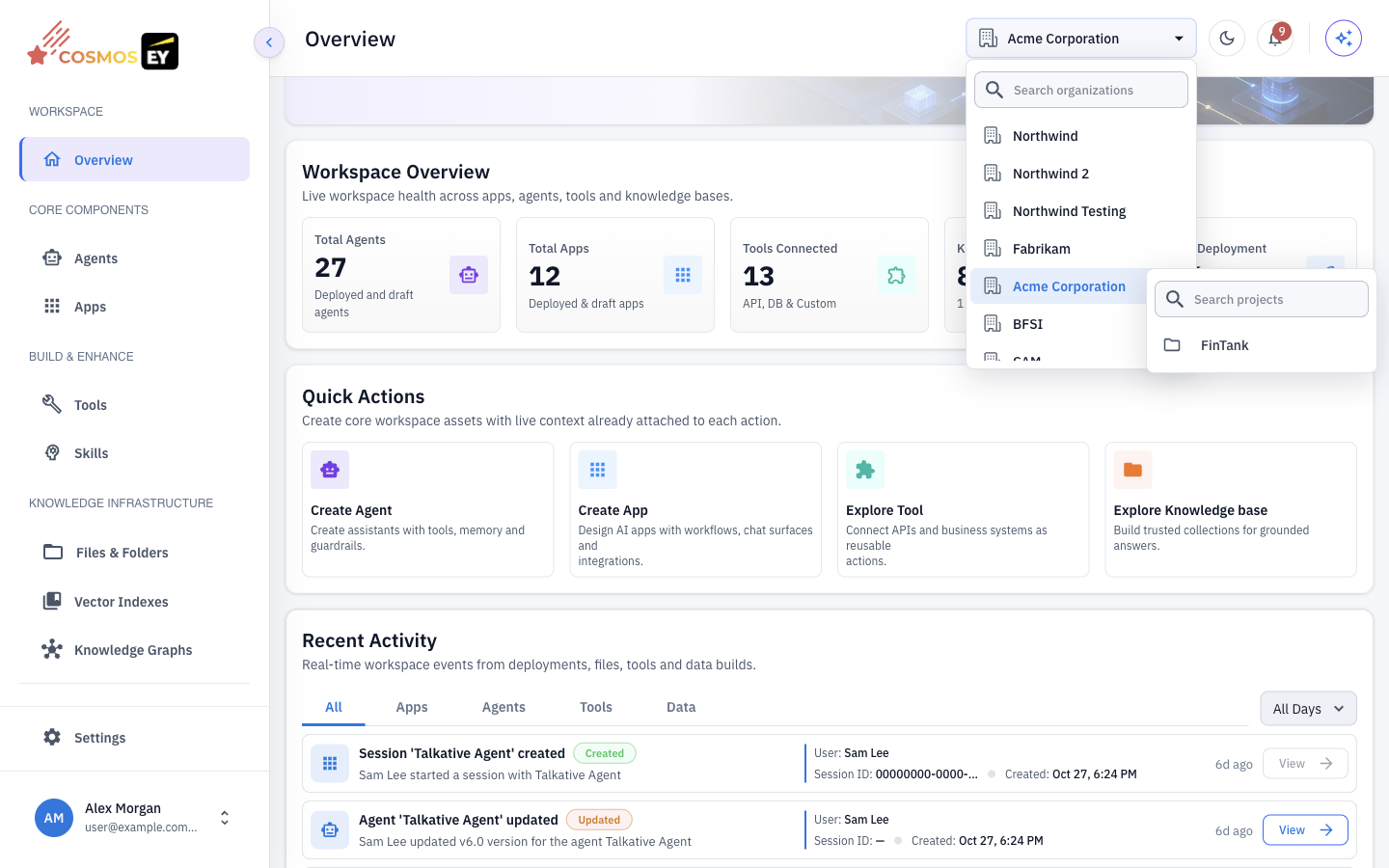
Use the workspace selector in the header to switch organization or project. Your permissions update to match the selection, and lists such as Agents and Apps show only the selected project's resources.
Managing Your Organization
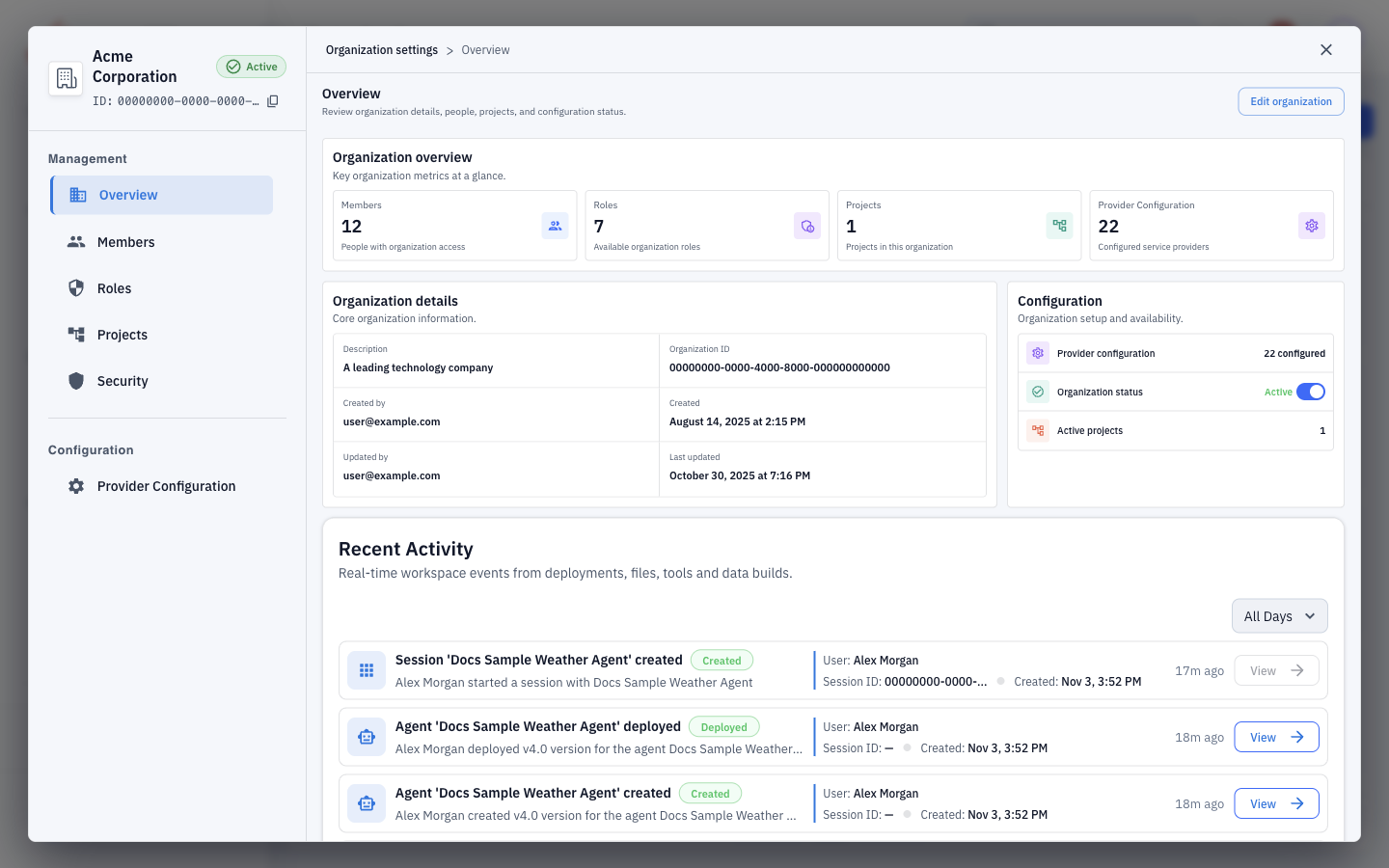
Open the user menu at the bottom of the sidebar and choose Manage Organization. The dialog has these tabs: Overview, Members, Roles, Projects, Security, and Provider Configuration.
Overview
Shows the organization's name, description, logo, and status.
Members
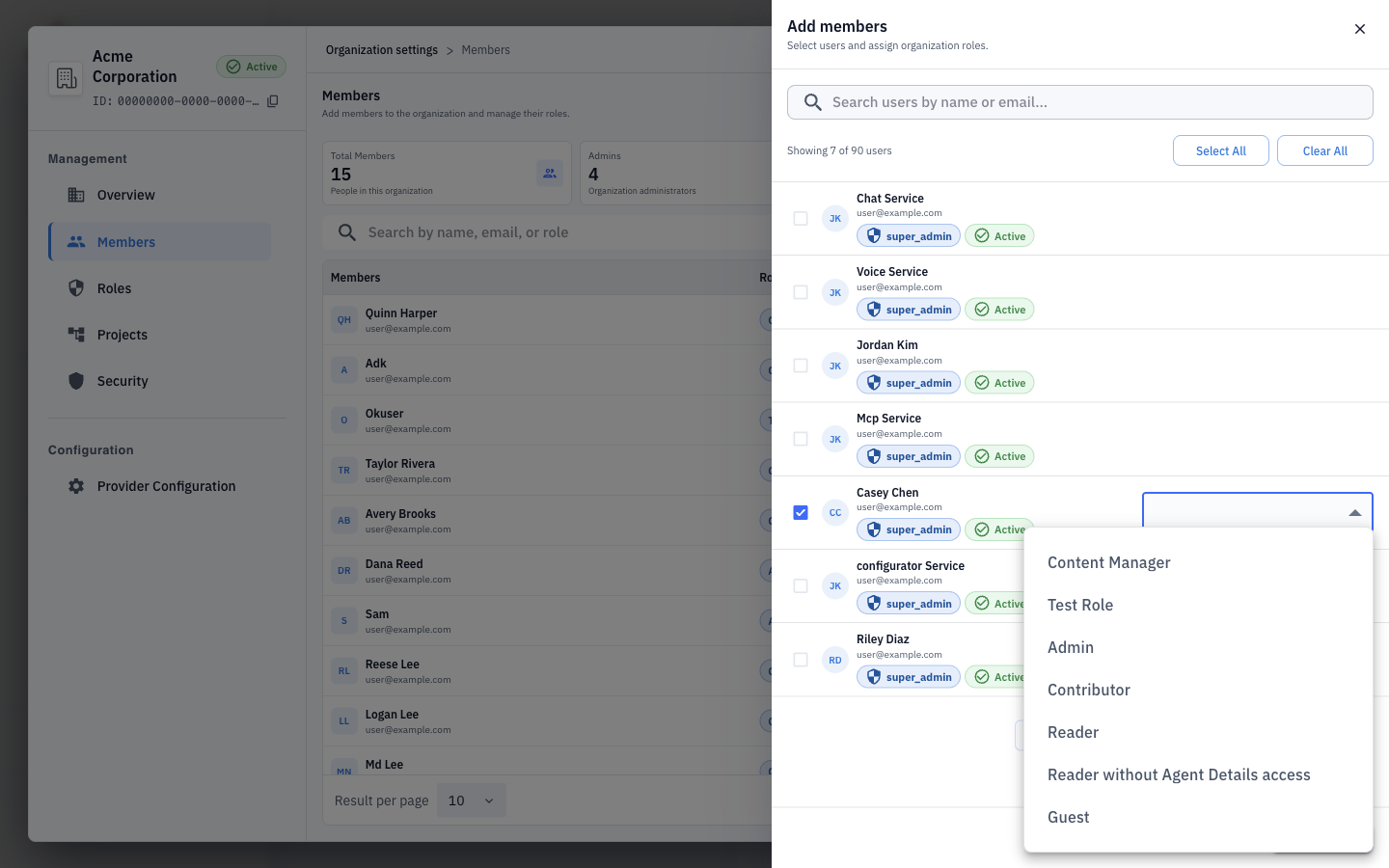
- Open Members and click Add Members.
- Search users by name or email. If the person has no Cosmos account yet, choose Add New User to create one.
- Select one or more roles. A role is required.
- Add the members.
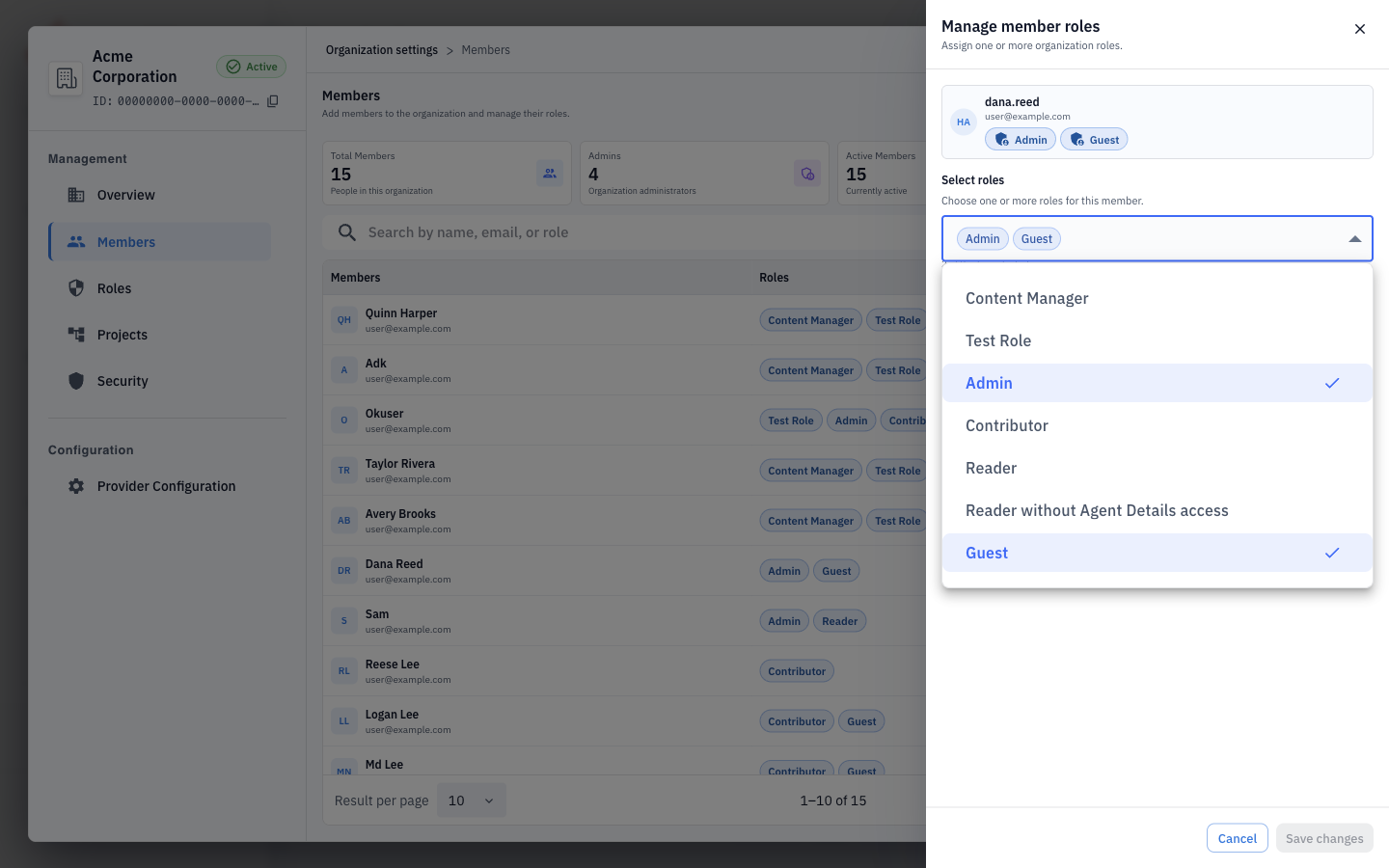
A member's effective permissions are the combination of all their roles. You can change a member's roles or remove them from the organization from the members list. Removing a member does not delete their Cosmos account.
Roles
The Roles tab shows two kinds of role:
| Role | Type | What it allows |
|---|---|---|
| Admin | Shared, system managed | Full access, including members, roles, settings, and all resources |
| Contributor | Shared, system managed | Create and manage agents, tools, apps, and knowledge bases, but not members or roles |
| Reader | Shared, system managed | View agents, tools, and apps without changing them |
| Custom roles | Created by your admins | The permissions you choose |
Shared roles are read-only. To create a custom role:
- Click Add Role.
- Enter a Role name and Description.
- Select the permissions to include.
- Save.
To change a custom role, choose Edit role, update it, and click Save changes.
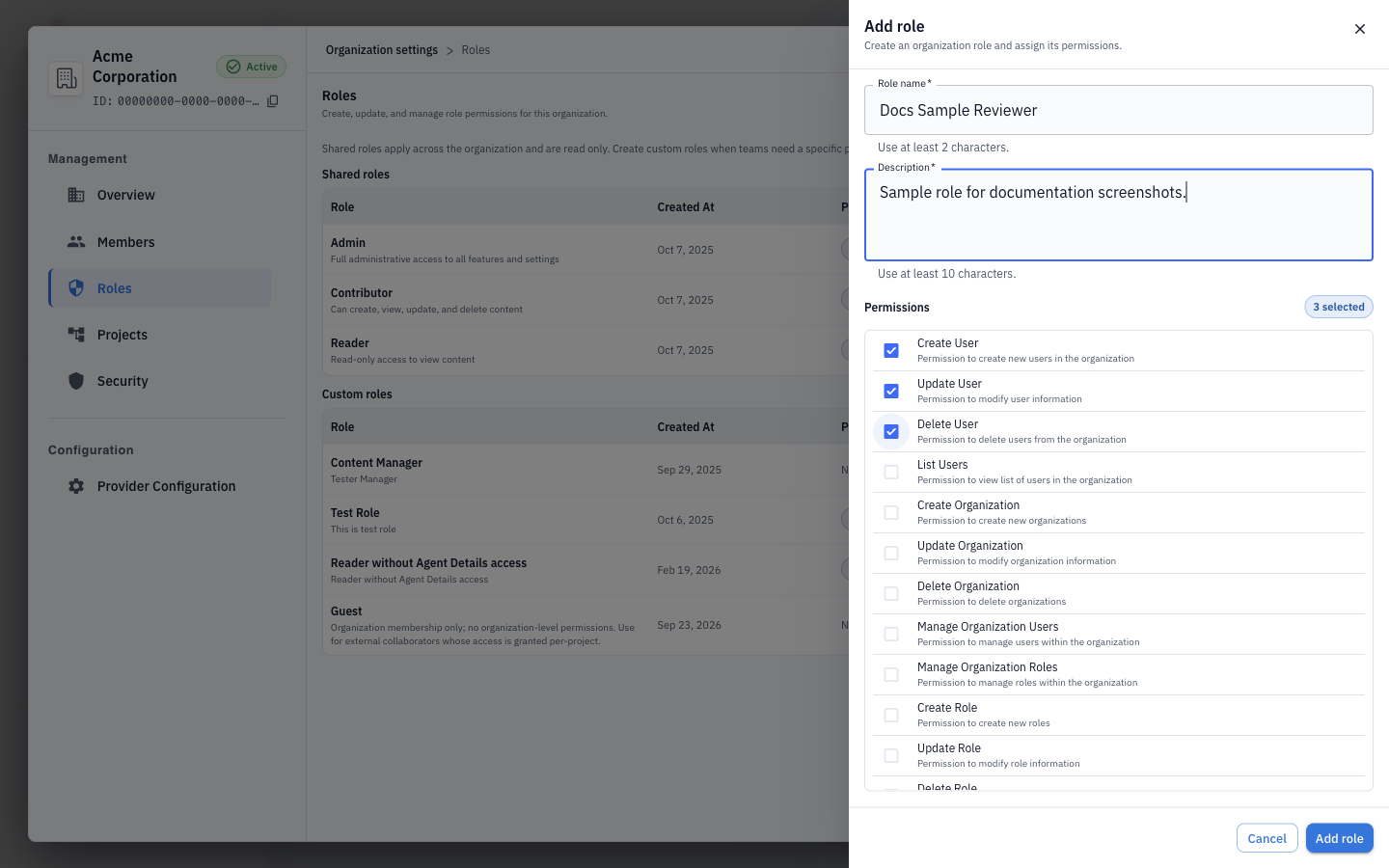
Permissions are grouped by area, for example:
| Area | Example permissions |
|---|---|
| Organization | org_view, org_update, org_manage_users, org_manage_roles |
| Users | user_create, user_view, user_list |
| Agents | agent_create, agent_view, agent_list, agent_update, agent_delete |
| Tools | tool_create, tool_view, tool_update, tool_delete |
| Apps | app_create, app_view, app_update, app_delete |
| Knowledge base | file_create, file_view, file_update, file_delete |
| Observability | view_metrics, view_logs, write_logs |
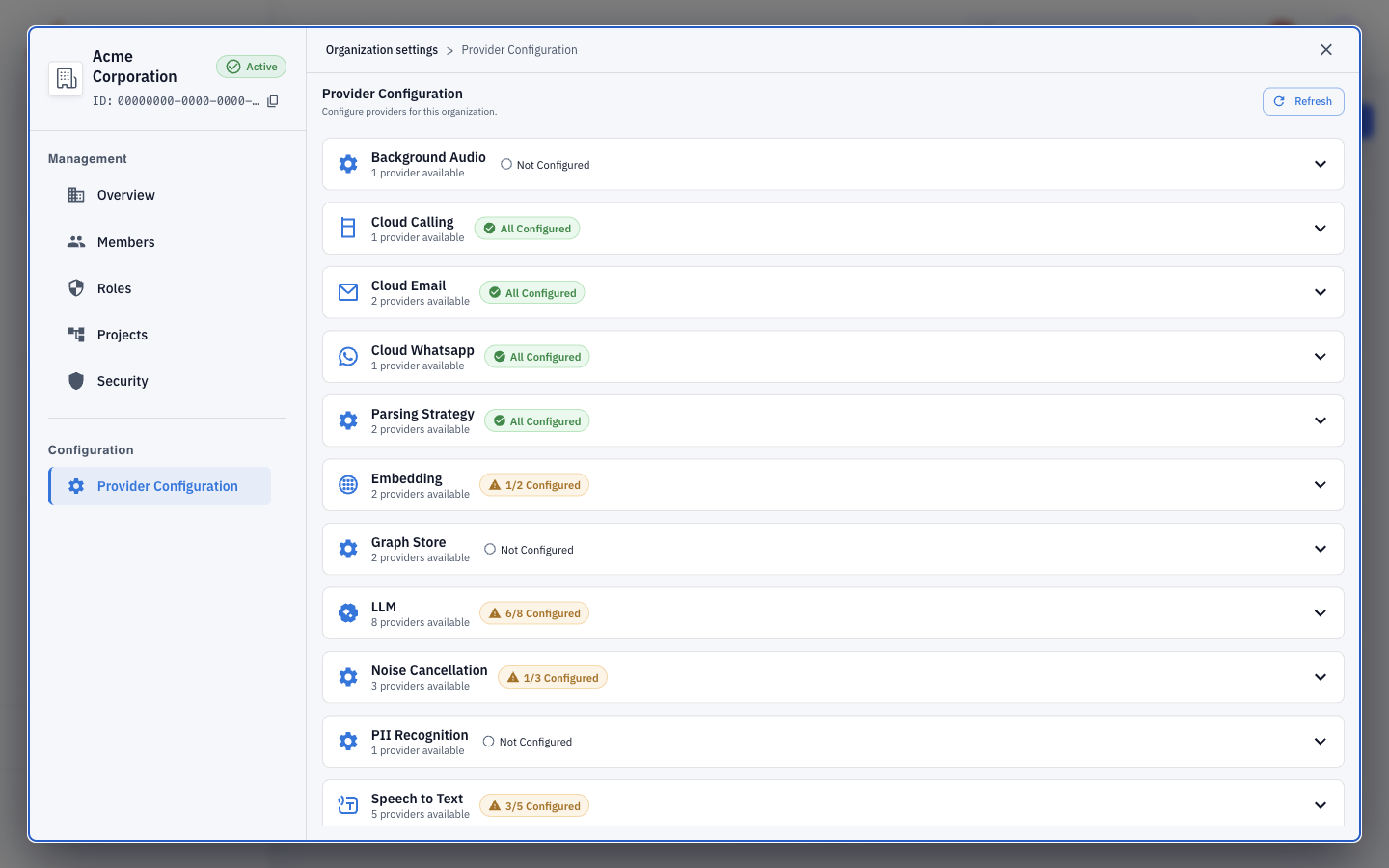
Provider Configuration
Set the credentials your organization uses for model, speech, messaging, and other providers. See Bring Your Own Token.
Projects
Projects group agents, apps, and other resources for a team or initiative. Open Projects in Manage Organization and click Create Project to add one. Opening a project shows the tabs Overview, Members, Groups, Roles, Resources, and Agent access.
- Members — assign project roles to organization members. You can search, filter by role, see each member's access, and remove members.
- Roles — projects have shared roles, Viewer, Editor, and Project admin, which cannot be changed. Project admins can also create custom project roles.
- Resources — attach agents and other resources to the project.
Each resource also has an ownership setting, Organization-shared or Project-only, chosen when you create it.
| Project role | What it allows |
|---|---|
| Viewer | View project resources and run agents |
| Editor | View, create, and update project resources, but not membership or roles |
| Project admin | Full project management, including members, roles, and resources |
💡 The shared project roles can run any agent attached to the project by default. A custom project role can run agents only if that permission was included when the role was created.
Agent access
The Agent access tab shows, for each attached agent, the members who are exceptions to the default: people whose access was individually restricted, or who were individually granted access their role would not give them. Turn on Exceptions only to focus on those cases.
Select an agent to see every member with Can run, the reason, and any Individual grants, Restrictions, or Managed source. From there you can:
- Revoke a member's access to one agent, even if their role allows it. This does not change their role or membership.
- Grant access to a member whose role does not include it.
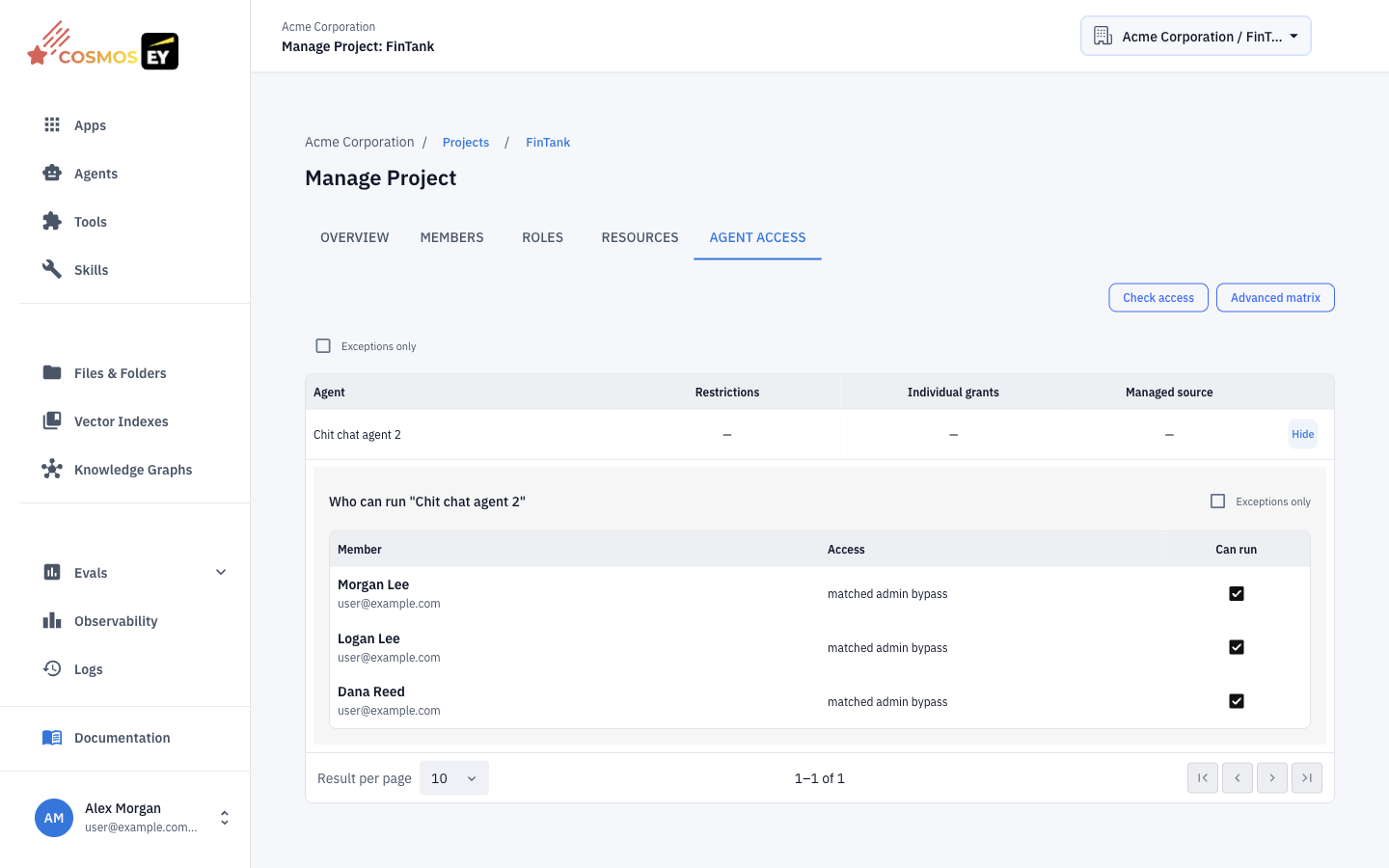
⚠️ Some access comes from another system or from administrator rights. These entries are labeled with their source and are read-only here. Change them at their source.
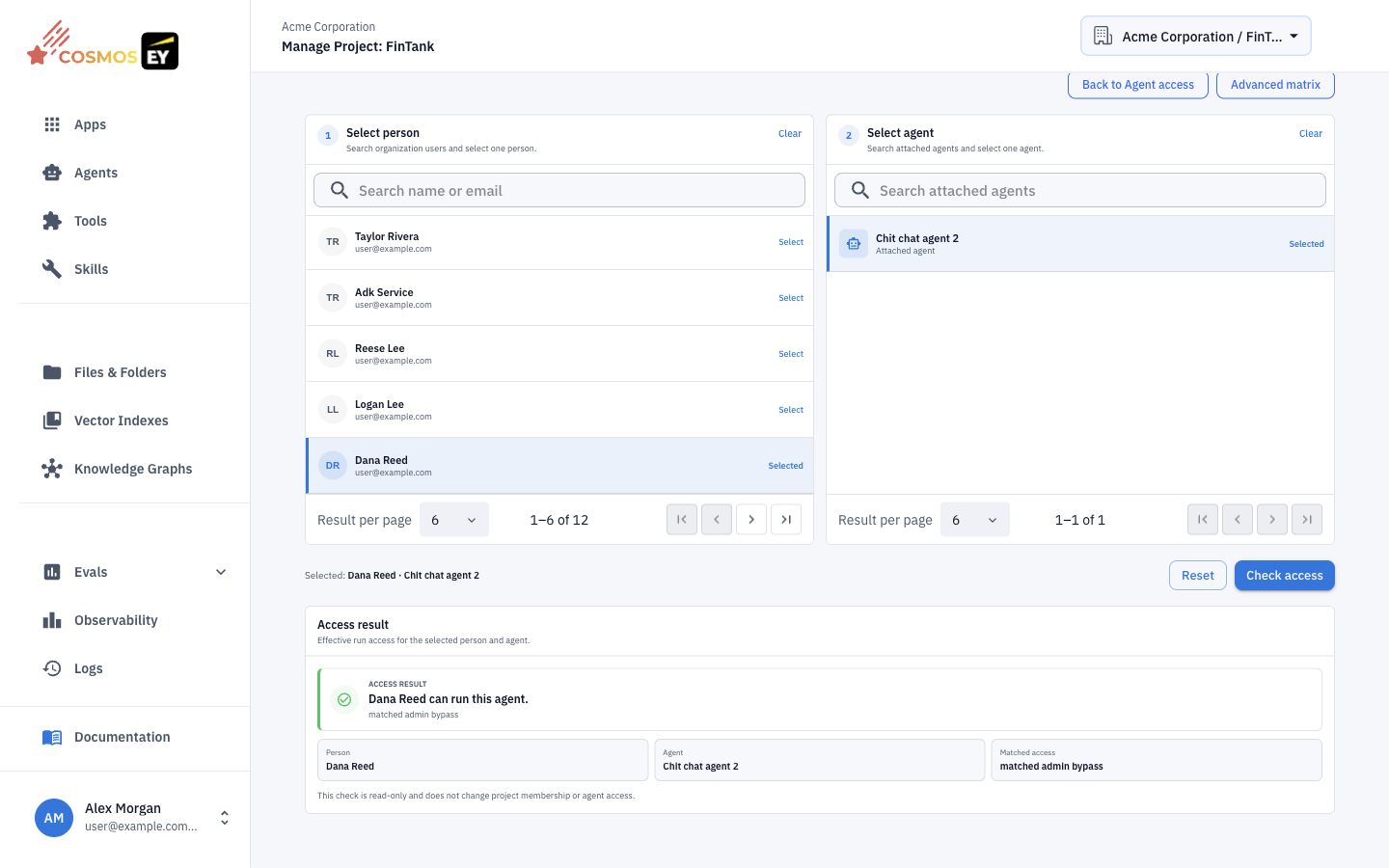
Check access
Check access answers "can this person run this agent right now?" without changing anything. Pick an organization user, including someone who is not yet a project member, and an agent attached to the project. Cosmos shows whether access is allowed or blocked, and why: missing membership, a role without run permission, an individual restriction, managed access, or administrator rights.
Advanced matrix
Open Advanced matrix from Agent access to see every member against every attached agent in one grid. Use it for bulk review. Changes are staged and applied together.
Platform Administration
These pages are for platform administrators and appear under Admin Configurations in the sidebar.
Organizations
- Open Organizations and click Add Organization.
- Enter the name and description, and optionally upload a logo (PNG, JPG, or GIF, up to 250 × 250 pixels and 150 KB).
- Save. The organization is created as active.
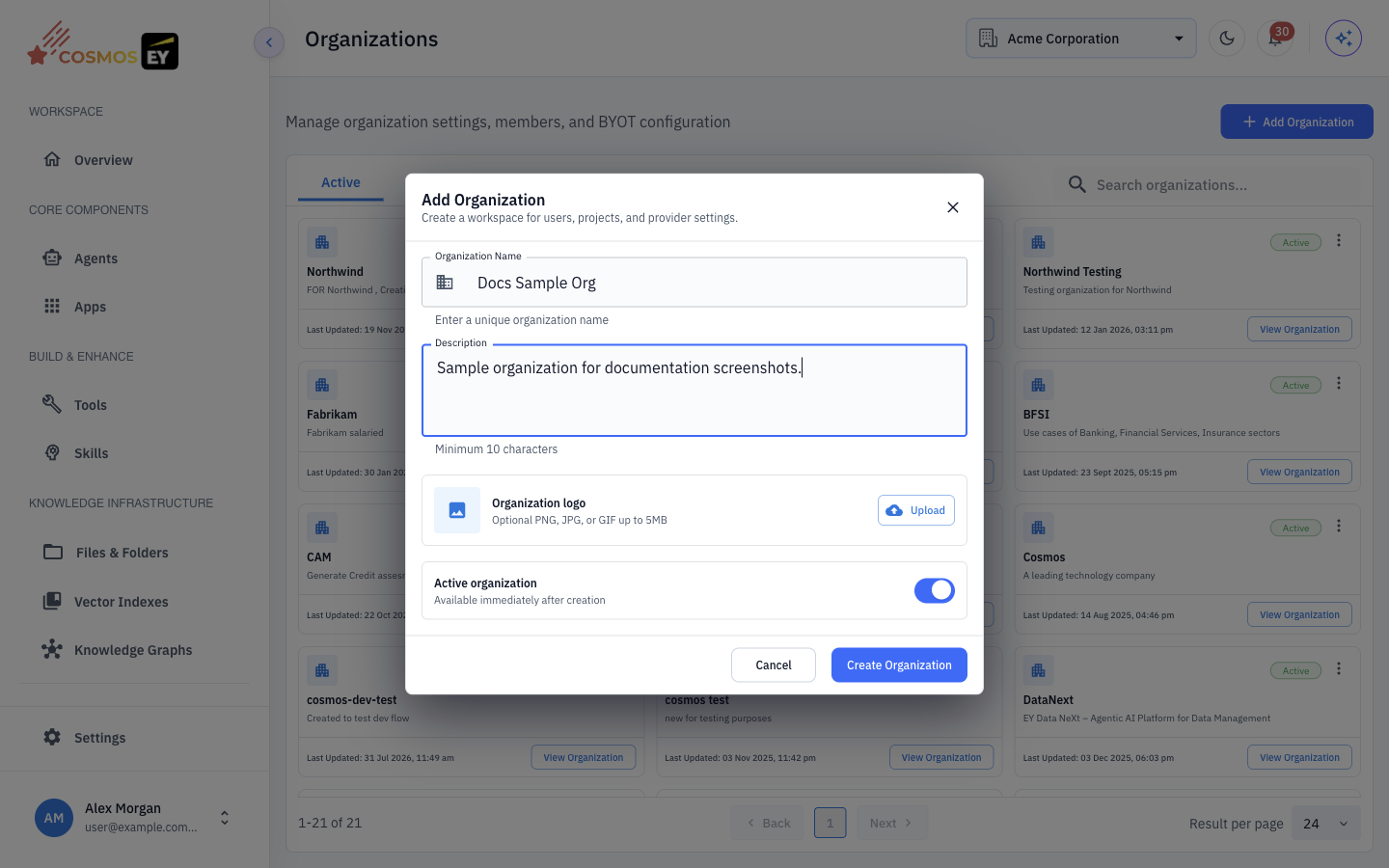
Each organization card opens Overview, Members, Roles, and Provider Configuration. When you edit an organization, the name cannot be changed. Turn off Active to suspend access for all members without deleting data, and turn it on again to restore access.
Users
The User Management page lists all users.
- Add User — create one user.
- Bulk Create — upload an
.xlsxfile to create many users. Download the template, fill in one user per row, and upload it. Files over 5 MB are rejected. If any row fails, you get an error workbook with a message per row and success and failure counts. - Reset MFA — reset a user's two-step verification.
- Super Admin — marks users with platform administrator rights.
Account Security
Every user can open Account security from the user menu to turn on two-step verification. With it on, you enter a code sent to your email when you sign in.
Tips & Best Practices
- Grant the least access needed. Start people as Reader and raise their role when needed.
- Use custom roles for specialist teams, such as a role with only tool and knowledge base permissions.
- Use projects to separate teams' resources inside one organization.
- Review membership regularly and remove people who no longer need access.
- Configure providers early, before building agents that depend on them.
- Use Check access before changing roles when someone reports they cannot run an agent.
Next Steps
| Topic | Link |
|---|---|
| Build your first tool | API Tools · Database Tools |
| Create and deploy agents | Agents |
| Publish agents as apps | Apps |
| Configure provider keys | Bring Your Own Token |
| Platform overview | Getting Started |