Bring Your Own Token (BYOT)
Guide to configuring your own model and service provider credentials in Cosmos
Updated 2026-11-03
Verified 2026-11-03
Overview
Bring Your Own Token (BYOT) lets your organization use its own provider credentials in Cosmos. Instead of shared platform credentials, you supply your own API keys for model providers and other services. Agents and apps in the organization then use those credentials, which gives you control over model choice, cost, and rate limits.
BYOT is configured per organization. Every agent and app in the organization can use the providers configured there.
Service Categories and Providers
Provider credentials are grouped by service category. Besides LLM, categories include embedding, speech-to-text (STT), text-to-speech (TTS), vector storage, and PII detection. The workflow is the same for every category.
The providers and fields shown come from your Cosmos environment, so your list may differ. Typical LLM providers include:
| Provider | Typical credentials |
|---|---|
| Azure OpenAI | API Key, Endpoint, API Version |
| Google AI (Gemini) | API Key |
| Vertex AI | Project ID, Service Account (JSON), Location |
| AWS Claude | API Key, Region |
| Azure Claude | API Key, Endpoint, API Version |
| Smallest AI | API Key, API Base URL |
| Inhouse | API Base URL, API Key (optional) |
Step-by-Step Configuration
Step 1: Open Provider Configuration
You need organization admin rights.
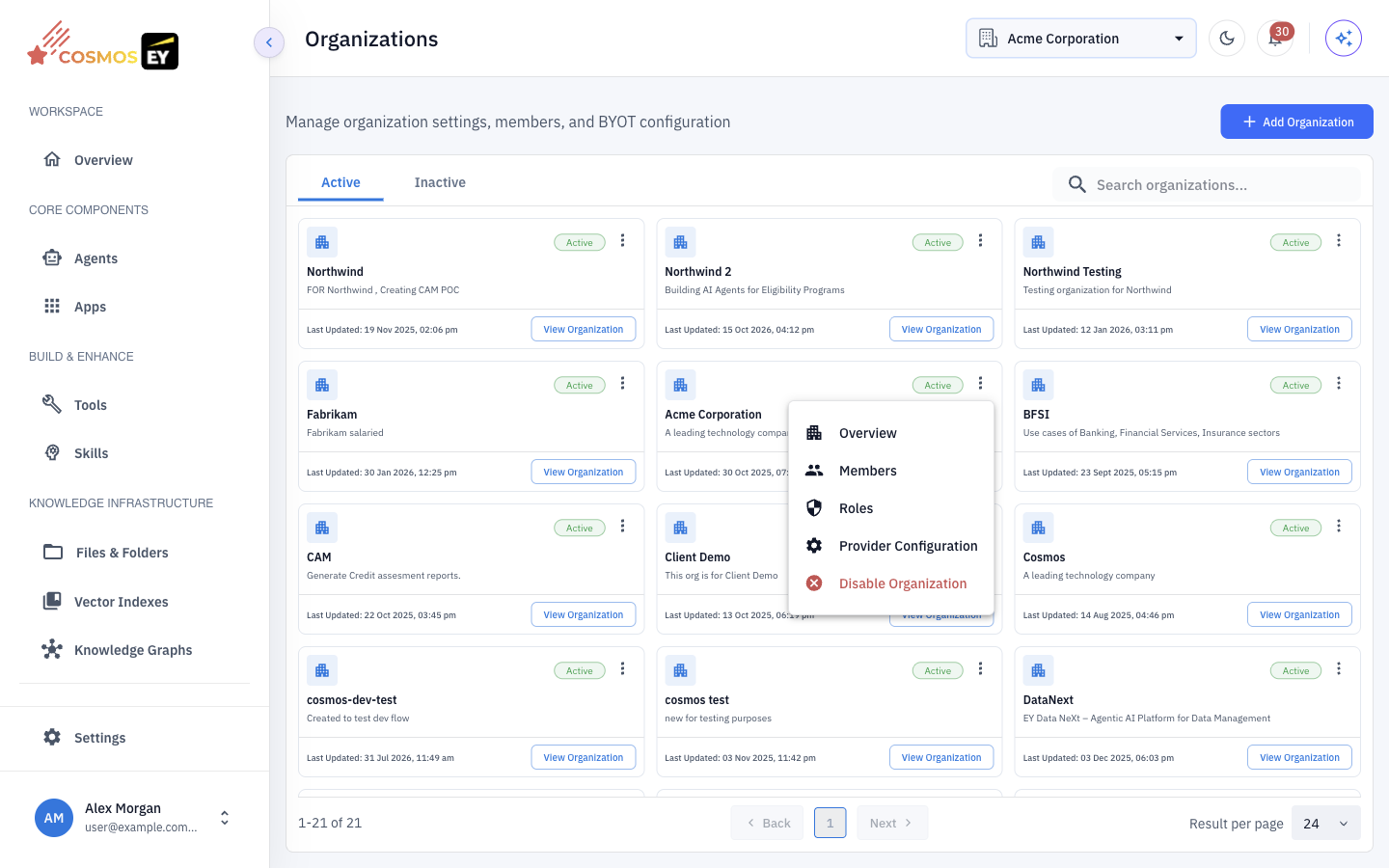
- Organization admins: open the user menu at the bottom of the sidebar, choose Manage Organization, and open the Provider Configuration tab.
- Platform administrators: open Organizations under Admin Configurations, find the organization card, and choose Provider Configuration.
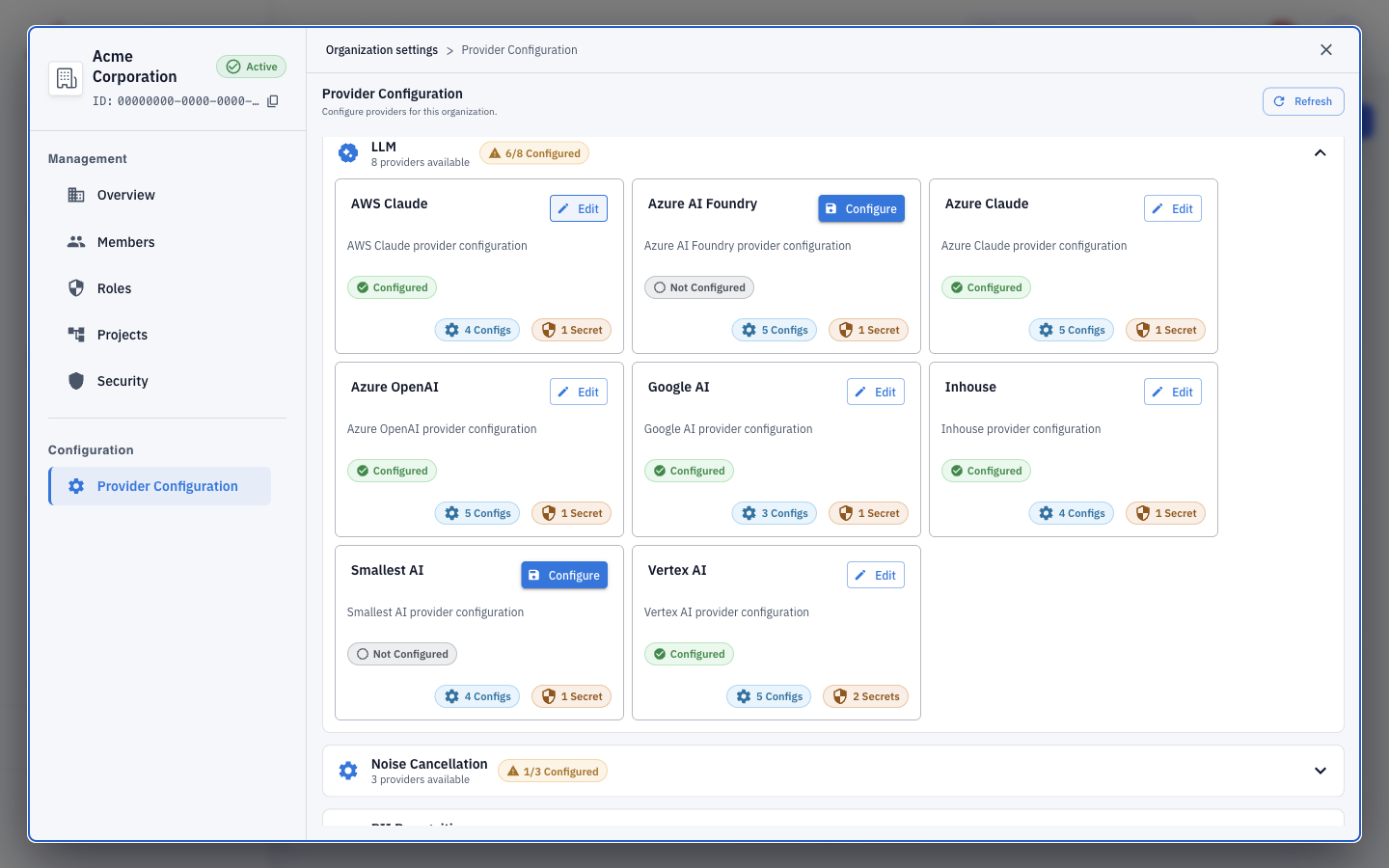
The Provider Configuration - <organization> dialog opens. The header shows the number of services and how many providers are configured, for example 2/7 configured.
Step 2: Find the provider
Each service category is a section with its providers as cards. Each card shows Configured or Not Configured. Use the Not Configured and All Configured filters to focus the list.
Step 3: Enter credentials
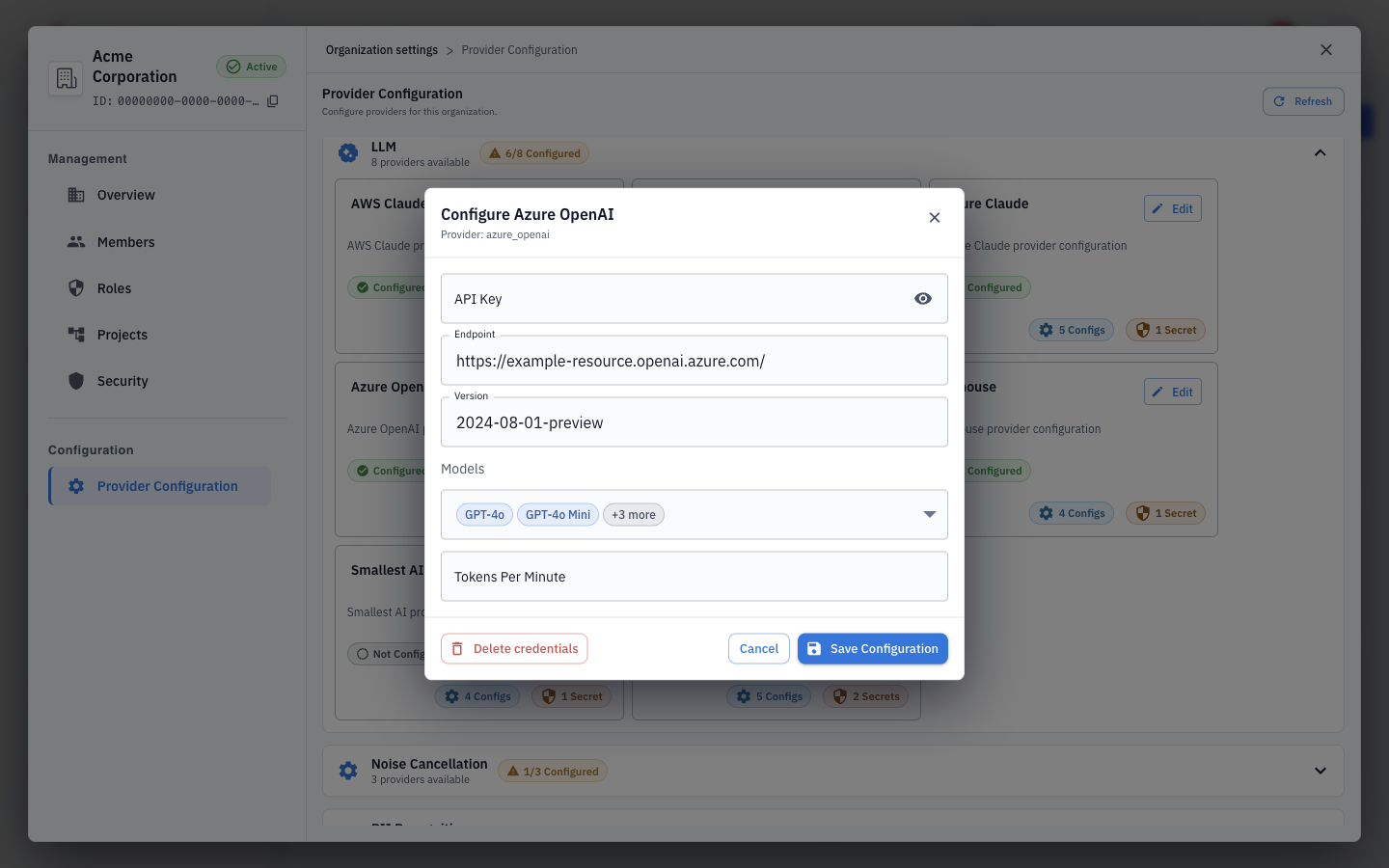
Click Configure on a provider card. Fill in the fields for that provider. Cards show how many secret fields the provider has.
Azure OpenAI example:
| Field | Description |
|---|---|
| API Key | Your Azure OpenAI resource key |
| Endpoint | Your resource endpoint URL, for example https://my-resource.openai.azure.com/ |
| Version | The API version string |
🔒 Secret fields are masked after saving. You cannot read them back, only replace them with a new value.
Step 4: Choose models
Where the provider offers a model list, select the models your organization should use. Only selected models appear when you configure agents.
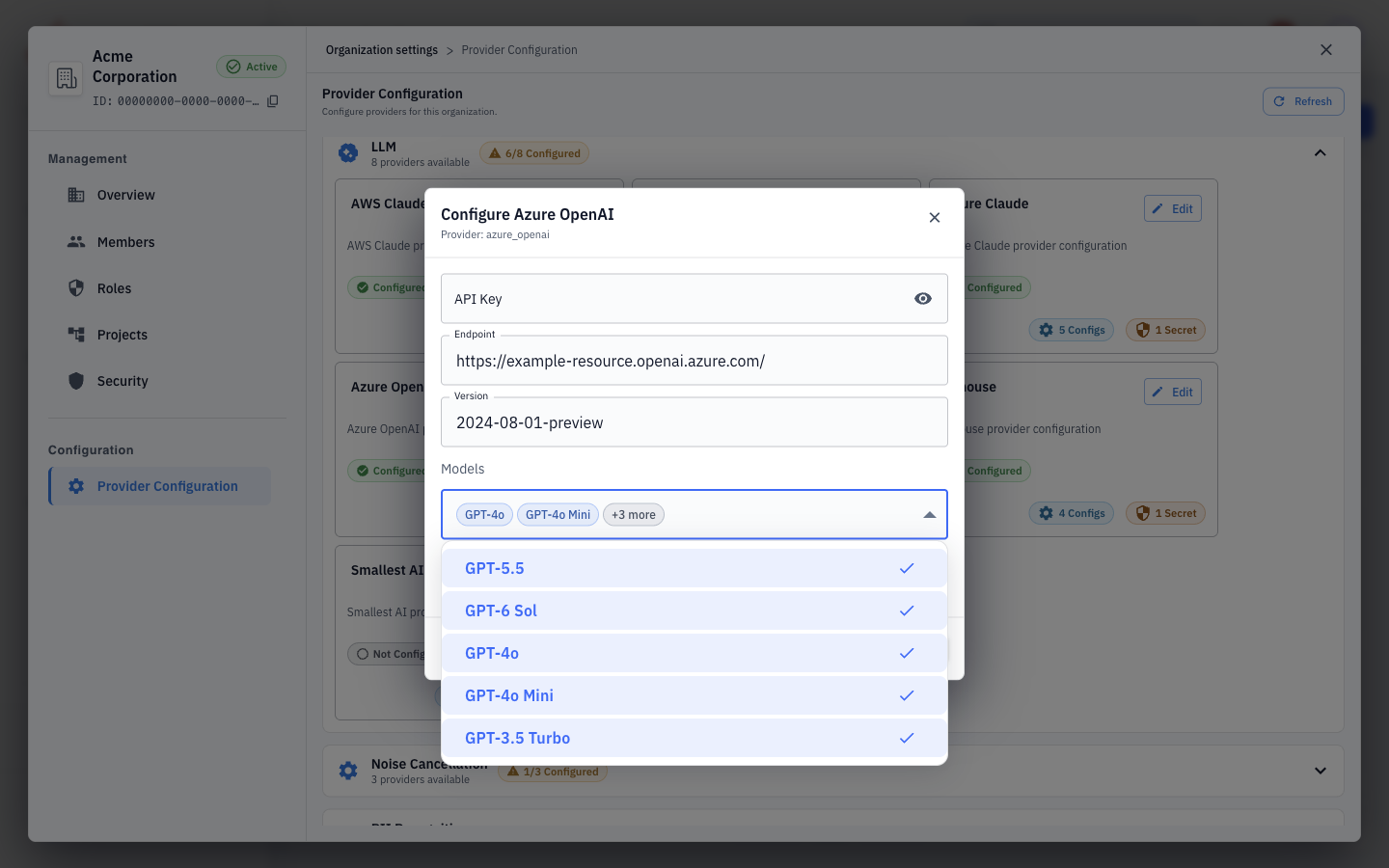
Some providers also offer a Tokens Per Minute value so Cosmos can manage throughput.
Step 5: Save
Click Save Configuration. The card changes to Configured and the count in the header updates.
To remove stored credentials, for example after a key is rotated or a provider is retired, open the card and click Delete credentials, then confirm.
Using BYOT Models in Agents
- Create or edit an agent and open the Model step.
- The Provider list shows only providers configured for your organization.
- Choose a provider, then a Model from the models you enabled.
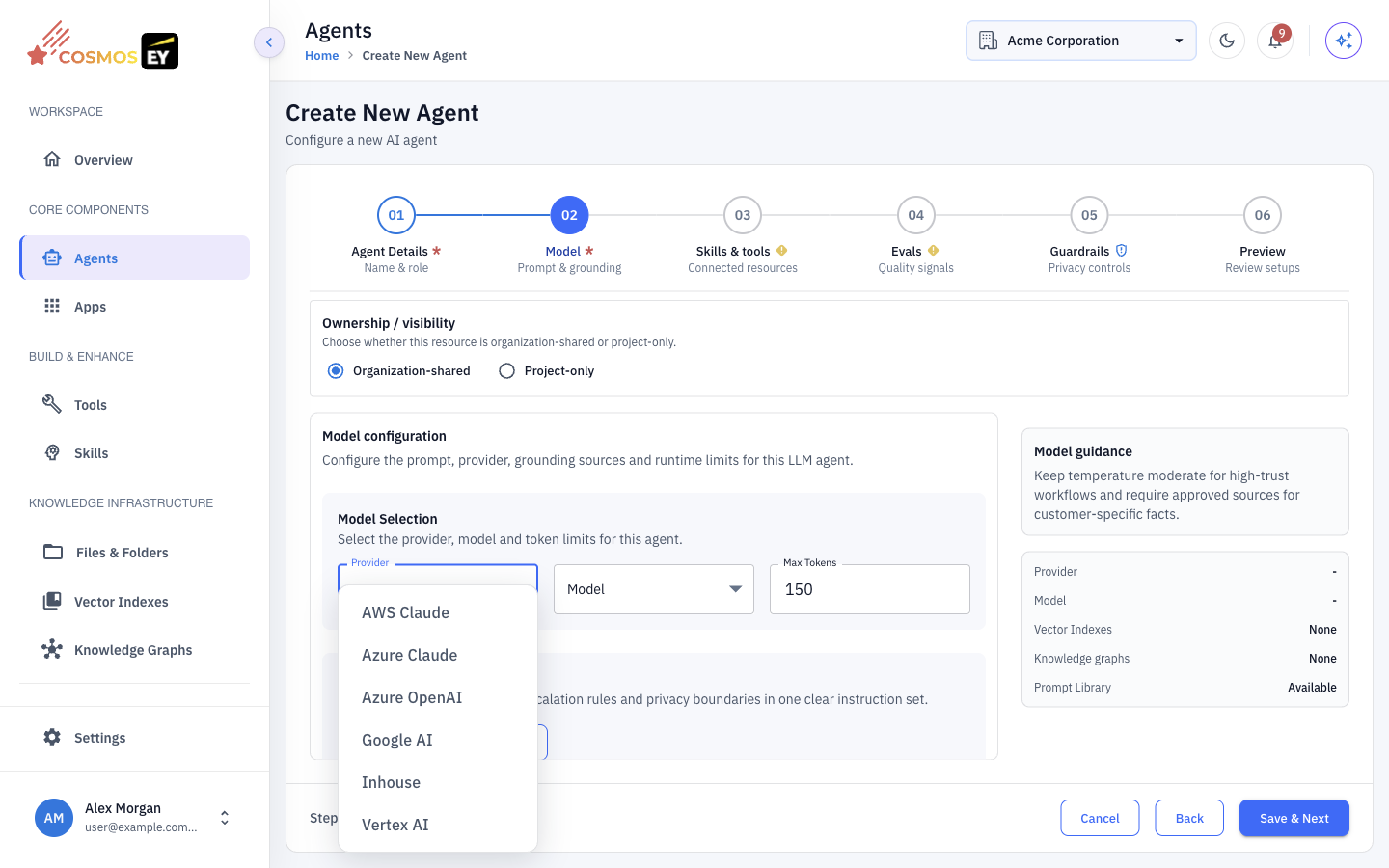
If the Provider list is empty, ask your organization admin to configure a provider.
Security
- Encrypted at rest. Secret fields are stored encrypted and are never shown again after saving.
- Organization-scoped. Each organization's credentials are isolated from other organizations.
- Admin-only. Only organization admins and platform administrators can view and change provider configuration. Other users only use the configured models through agents.
- Not stored in the browser. Credentials are sent over HTTPS and stored on the server.
Tips & Best Practices
- Start with one provider and test an agent with it before adding more.
- Use dedicated keys for Cosmos so you can audit and revoke them separately.
- Rotate keys regularly. Open the card, enter the new key, and save.
- Check regions. For region-based providers such as AWS Claude, the available models depend on the region.
- Watch cost. Use your provider's console together with Expense and Observability in Cosmos.