Model Garden
Guide to registering, deploying, testing, and fine-tuning self-hosted models in Cosmos, and choosing models for agents
Updated 2026-11-03
Verified 2026-11-03
Overview
Model Garden is where platform administrators register, deploy, and manage self-hosted models on GPU infrastructure. Deployed models can then be used by agents alongside external models that your organization connects with Bring Your Own Token.
ℹ️ Model Garden is available to platform administrators. It appears under Admin Configurations in the sidebar. Other users choose models in the agent's Model step.
Model Garden has these pages: Models, Fine-Tuning, Datasets, API Keys, Images, and Node Pool.
Browsing Models
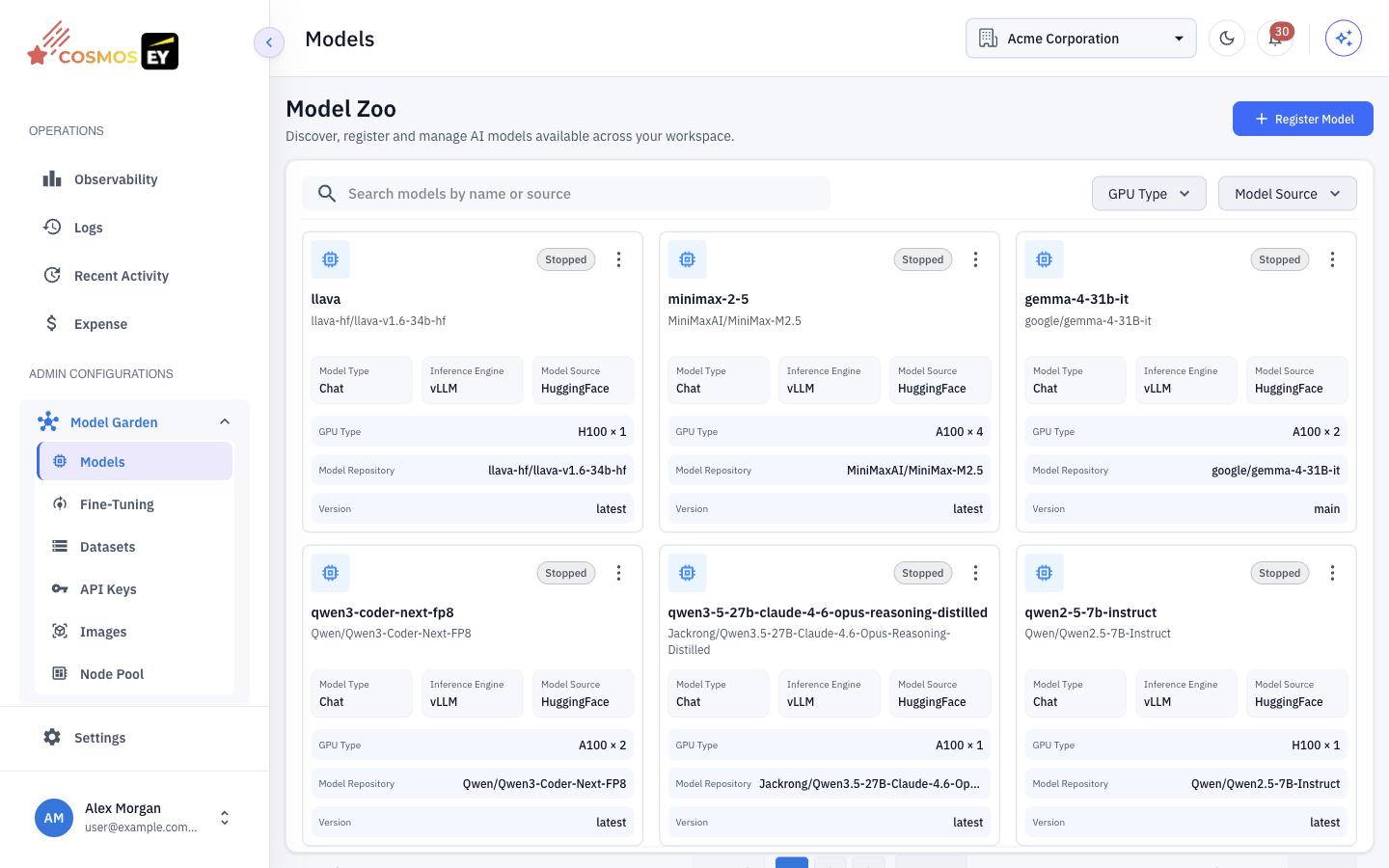
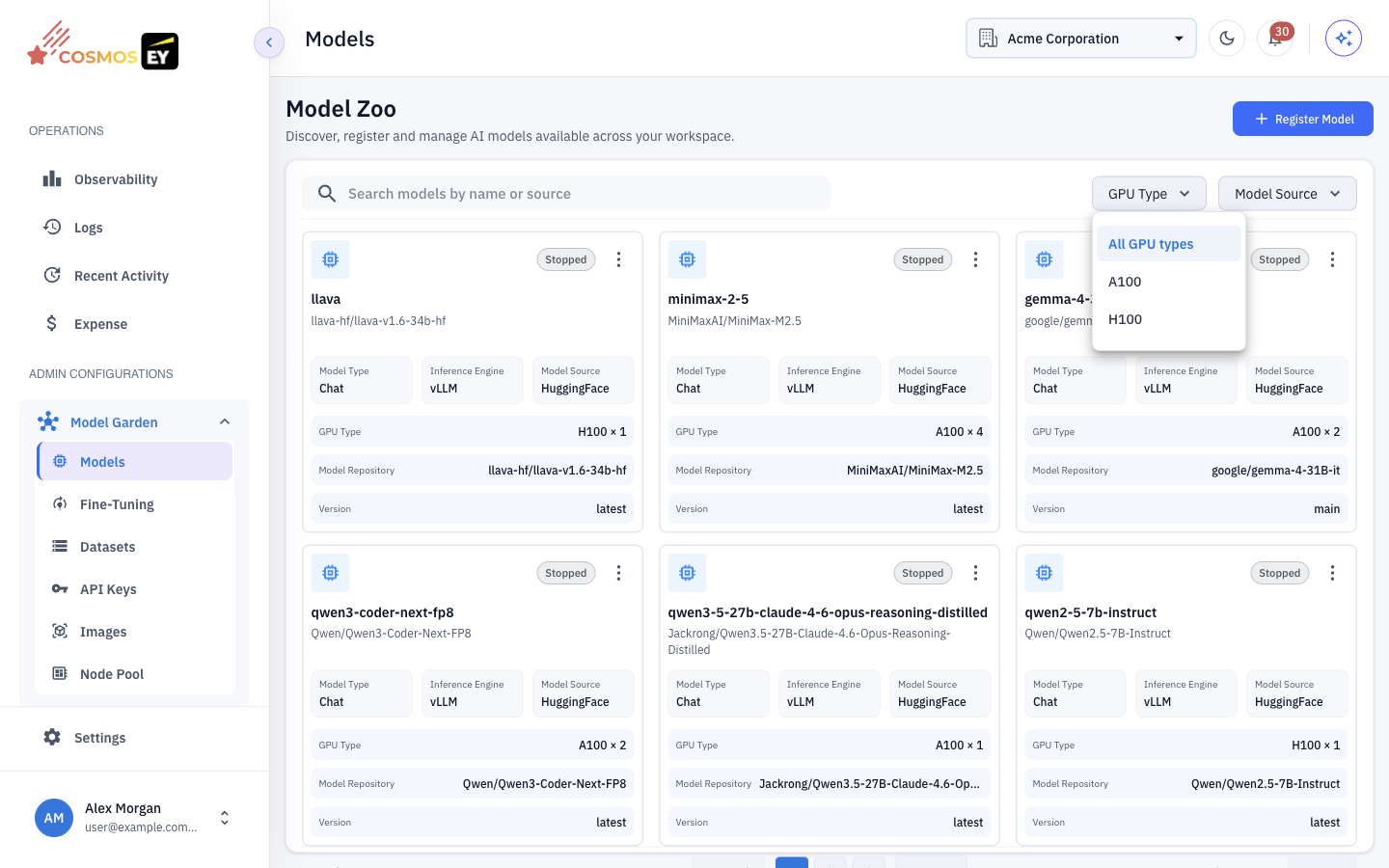
Open Models to see the Model Zoo page. Search by name or source, and filter the list:
| Filter | Options |
|---|---|
| GPU type | A100, H100 |
| Model source | HuggingFace, Local, File Storage |
Each model card shows the model type (chat or embedding), inference engine, source, GPU allocation, quantization, and deployment status.
Registering and Deploying a Model
- On Models, click Register Model.
- Enter the model details, such as the source (a HuggingFace repository or a stored file), the model type, GPU type and count, context length, and quantization.
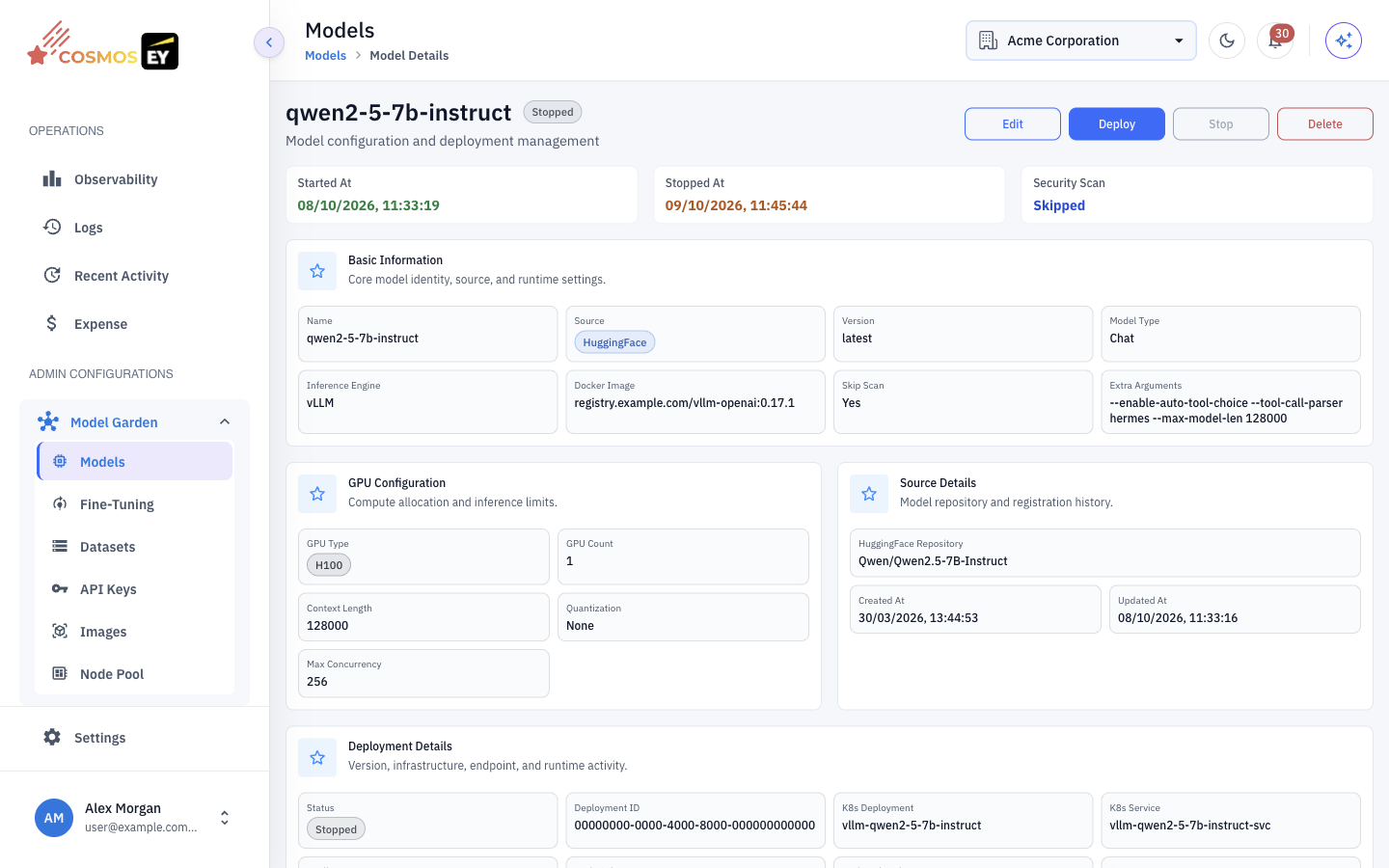
- Save, then deploy the model from its detail page.
The detail page shows deployment progress through these stages:
Provisioning Node → Scanning Model → Pulling Image → Loading Model → Running
The Scanning Model stage runs a security scan on the model before it is loaded. The detail page also has controls to deploy, stop, or delete the model, a logs panel for troubleshooting, and any fine-tuned LoRA Adapters for the model.
Testing a Model
When a model is Running, use the Inference Playground on its detail page:
- Choose Chat Completions for a multi-turn conversation or Text Completions for a single completion. Embedding models use the Embedding Playground.
- Adjust parameters such as temperature, maximum tokens, and top-p. Turn on Stream to see the response as it is generated.
- Enter a prompt and send it.
Selecting a Model for an Agent
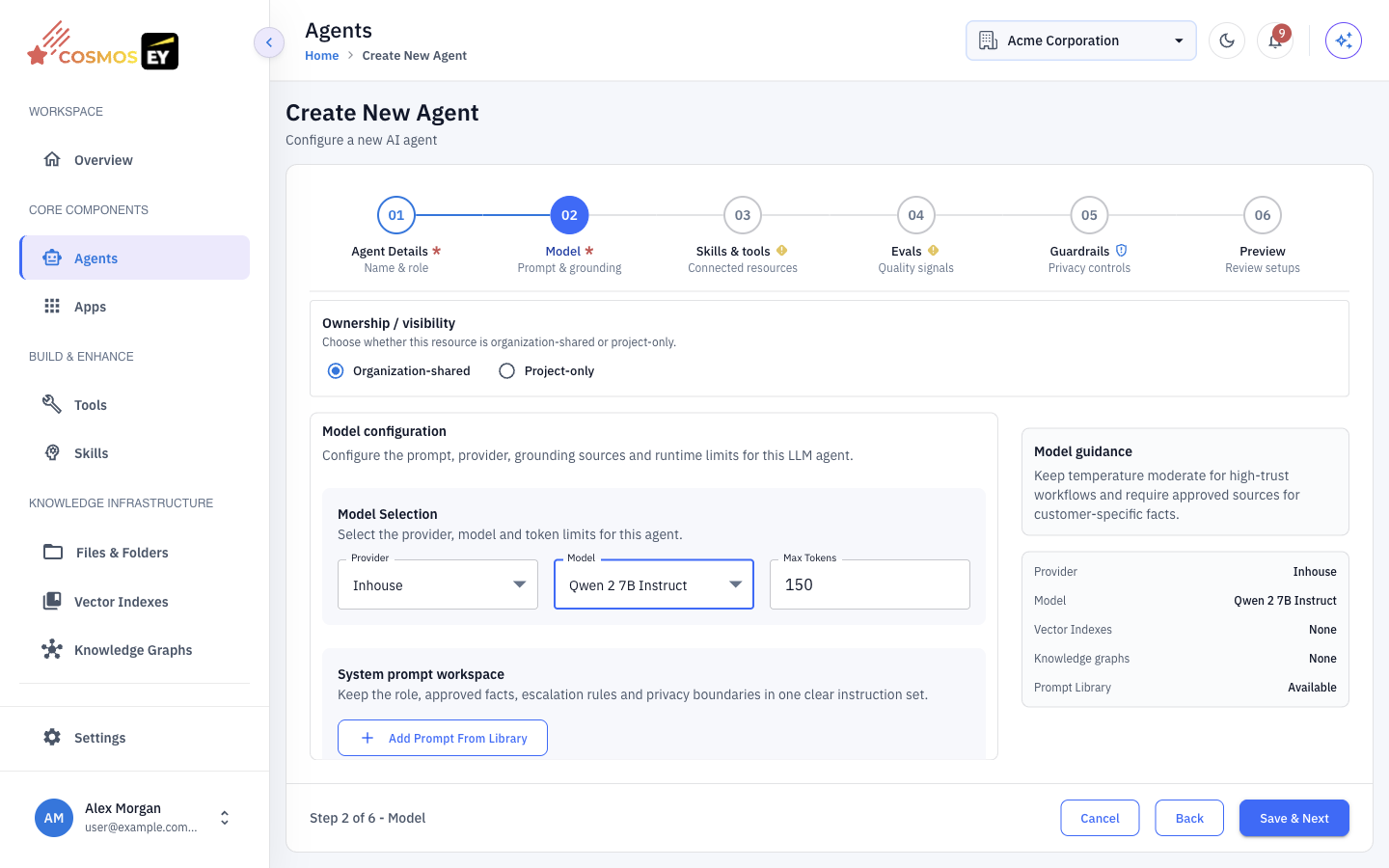
- Create or edit an agent and open the Model step.
- Choose a Provider and Model. The list includes external models configured through BYOT and self-hosted models deployed in Model Garden.
- Save the agent.
Model Garden or BYOT? Model Garden is for self-hosted models on your own GPUs. BYOT is for hosted models you reach with your own API keys. Both appear in the same model selector.
Datasets and Fine-Tuning
| Page | Use it to |
|---|---|
| Datasets | Upload, preview, download, organize, and delete training and evaluation files |
| Fine-Tuning | Start, monitor, cancel, retry, deploy, or undeploy fine-tuning jobs. Jobs are configured with an Axolotl configuration. |
Keep raw source files separate from cleaned training files, and use versioned, task-specific folders, so jobs can be reproduced.
API Keys, Images, and Node Pool
- API Keys — create scoped keys so partners or external systems can call your self-hosted models directly.
- Images — manage the container images used to serve models.
- Node Pool — see GPU node pool status and memory allocation. Check it before you deploy a large model.
Choosing a Model
| Need | Typical choice |
|---|---|
| General reasoning | A large hosted model from your BYOT providers |
| Fast, low-cost, high volume | A small hosted model or a small self-hosted model |
| Semantic search and indexing | An embedding model |
| Domain-specific behavior | A fine-tuned adapter deployed through Model Garden |
Tips & Best Practices
- Start with BYOT models for a quick setup. Self-hosted models need GPU capacity but give you full control of data and cost.
- Match the model to the task. Use smaller models for simple classification or FAQ agents.
- Use quantization (such as AWQ or GPTQ) to fit larger models on fewer GPUs, with a small quality trade-off.
- Test in the Inference Playground before assigning a model to a production agent.
- Watch Node Pool to avoid deployments that cannot be scheduled.