Creating Database Tools
Step-by-step guide to creating database query tools in Cosmos
Updated 2026-11-03
Verified 2026-11-03
Overview
A database tool lets an agent run a SQL query that you define. You write a query template with parameters, and the agent fills in the parameter values from the user's request. For example, a tool can look up a customer by email, list recent orders in a date range, or check stock for a product.
You can also build a database tool over spreadsheet files instead of a database server by choosing the Cosmos DB engine (see Querying files).
Prerequisites
- A Cosmos account with permission to create tools.
- A database that the Cosmos environment can reach: MySQL, PostgreSQL, Oracle, or SQL Server.
- Database credentials with read access to the tables you need, plus the host, port, and database name.
- A SQL query you have already tested in a database client.
Network access: If the database is behind a VPN or firewall, ask your administrator how to connect it to Cosmos.
Step-by-Step
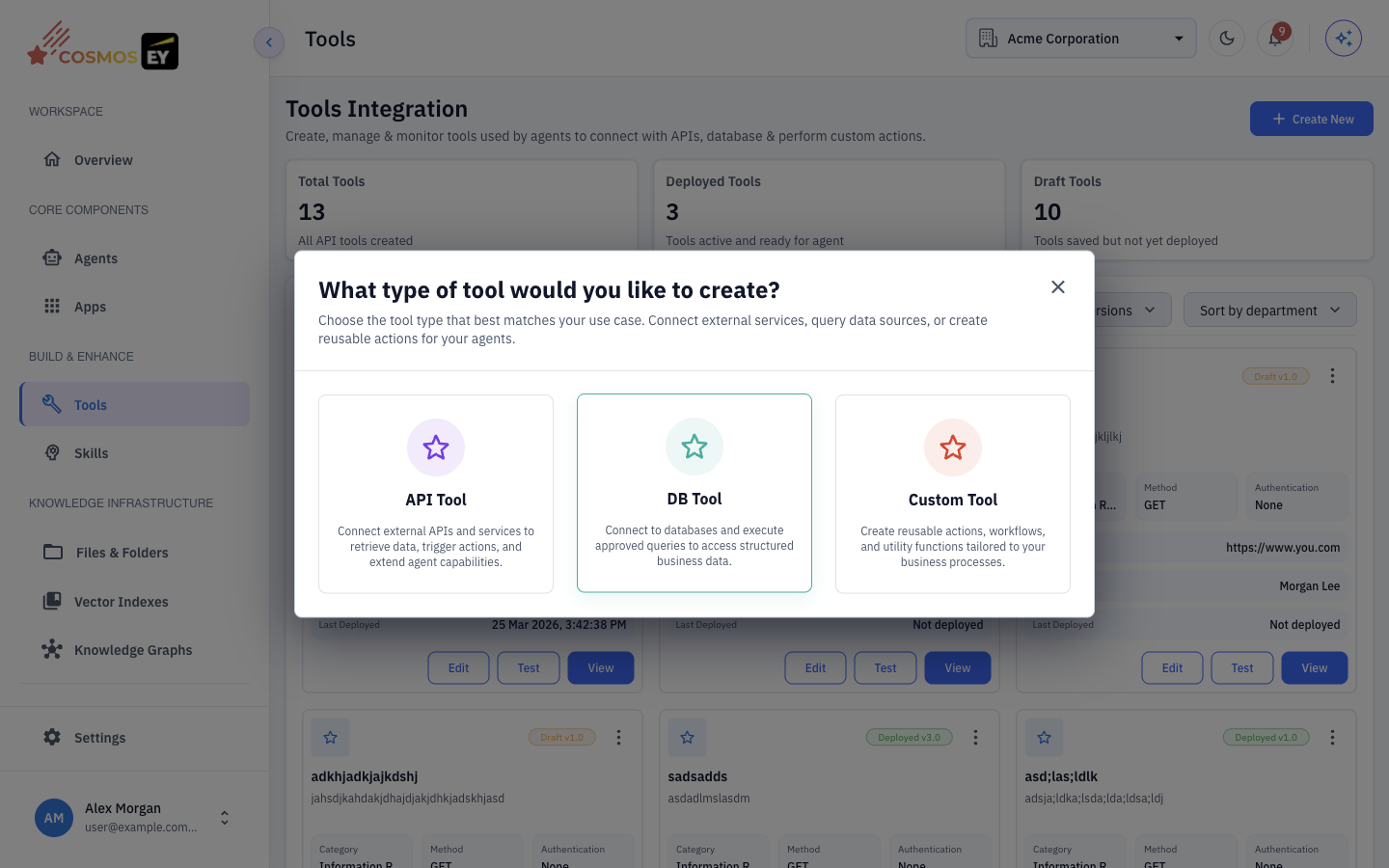
Step 1: Start a new database tool
- In the sidebar, click Tools.
- Click Create New, then choose DB Tool.
The wizard has two steps: Database Details and Preview. The Database Details step includes a Schema & Query Configuration section.
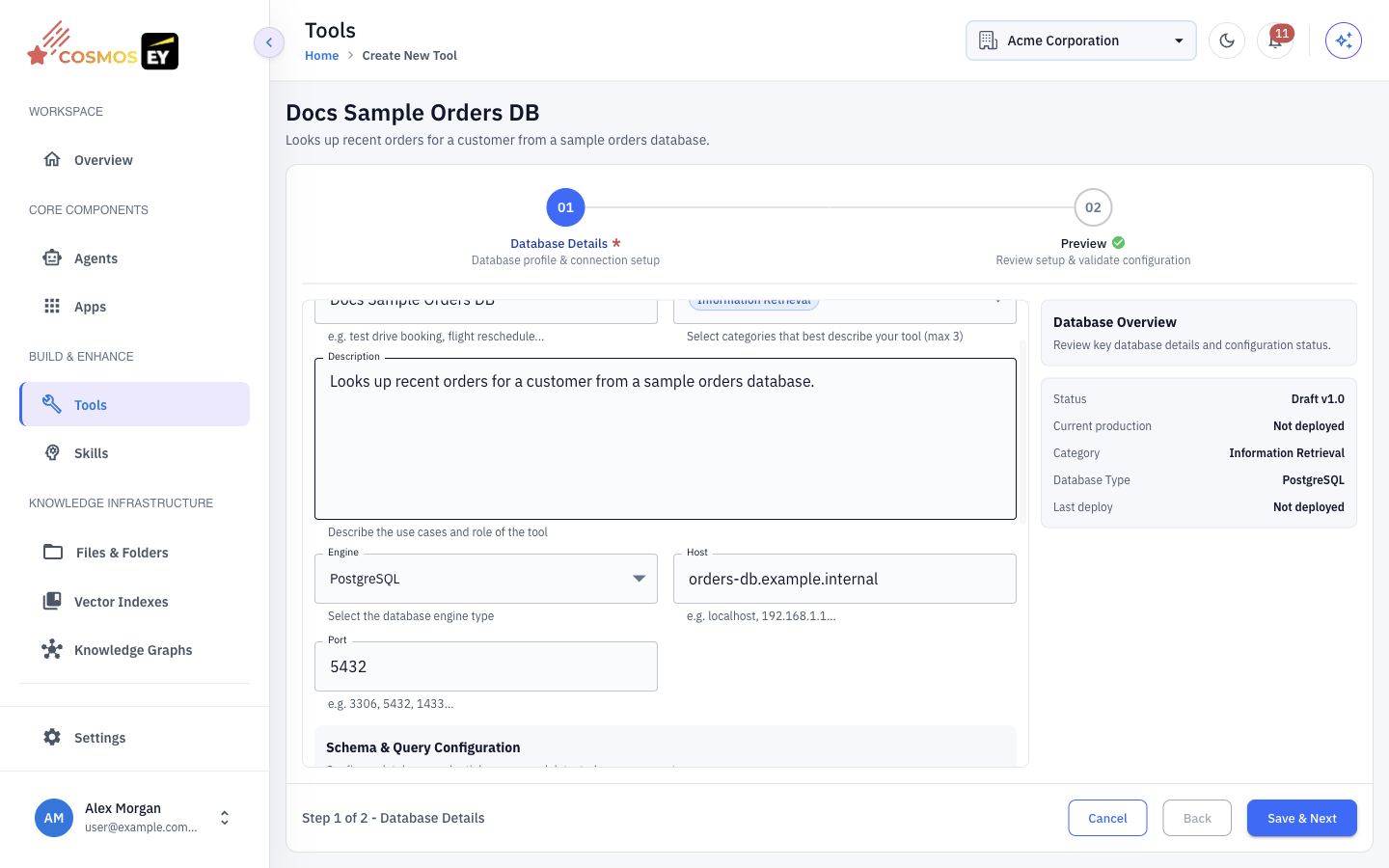
Step 2: Database Details
| Field | Description | Example |
|---|---|---|
| DB Name | A descriptive name for the tool. | Customer Lookup |
| Category | One or more categories for the tool. | Data Retrieval |
| Description | What the tool returns and when to use it (at least 7 characters). The agent reads this. | Finds a customer by email and returns profile details. |
| Engine | MySQL, PostgreSQL, Oracle, SQL Server, or Cosmos DB. | PostgreSQL |
| Host | Database server hostname or IP address. | db.example.com |
| Port | Database port. | 5432 |
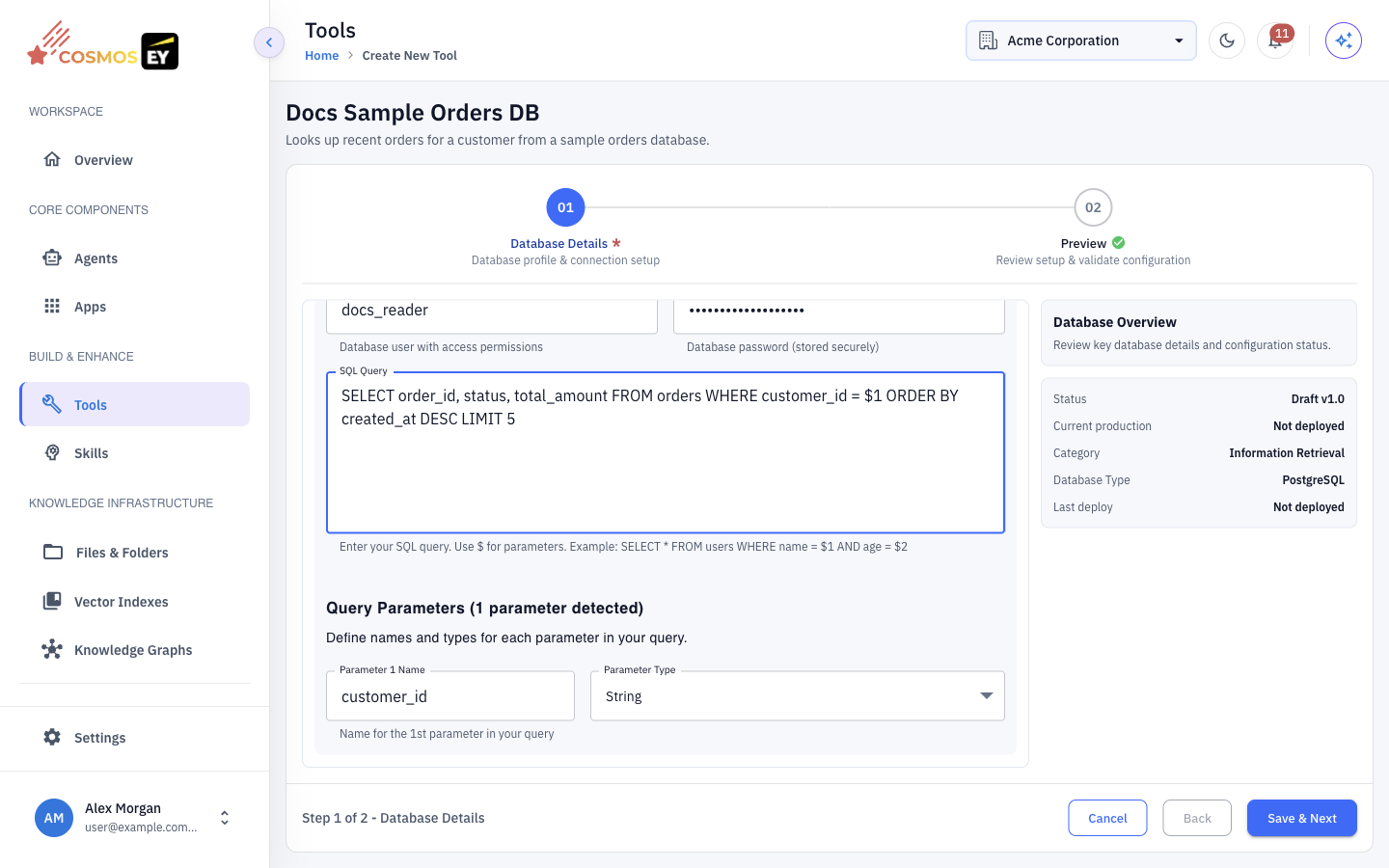
Step 3: Schema & Query Configuration
Further down the Database Details step, fill in the Schema & Query Configuration section:
| Field | Description | Example |
|---|---|---|
| Database Name | The database to connect to. | customers_db |
| Username | A database user with access to the target tables. | cosmos_reader |
| Password | The user's password. | •••••••• |
| SQL Query | The query template, with parameter placeholders. | See below. |
Use the placeholder style for your engine:
| Engine | Placeholder style | Example |
|---|---|---|
| PostgreSQL | $1, $2 (numbered) | SELECT name, email FROM customers WHERE email = $1 |
| MySQL | ? (positional) | SELECT name, email FROM customers WHERE email = ? |
| Oracle | :name (named) | SELECT name, email FROM customers WHERE email = :email |
| SQL Server | @name (named) | SELECT name, email FROM customers WHERE email = @email |
Cosmos detects the placeholders and lists them as parameters. For each parameter, set a clear name and a Parameter Type: String, Integer, Number, Boolean, Date, or DateTime. Rename generated names such as param_1 so the agent knows what to supply.
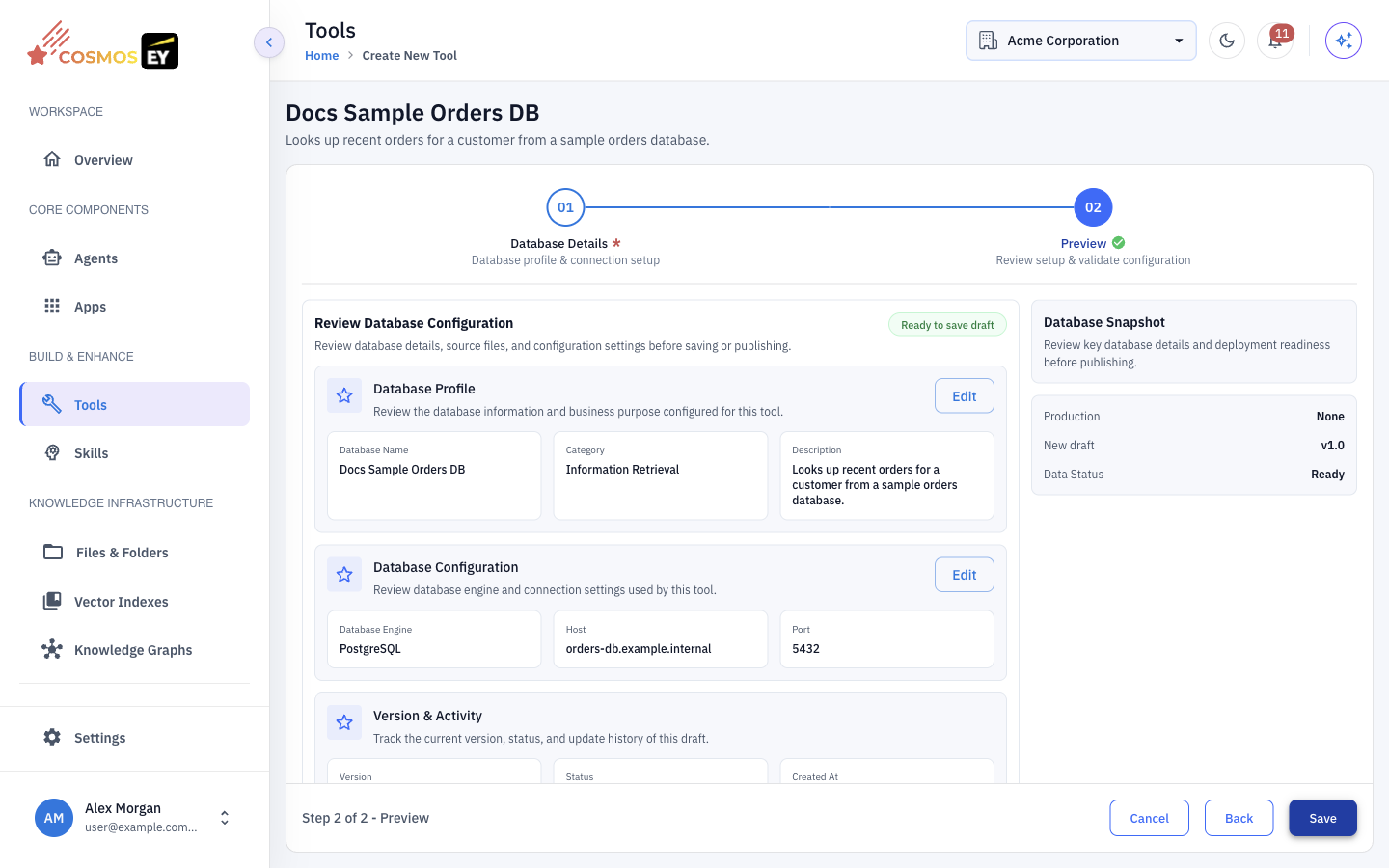
Step 4: Preview and save
Review the configuration on the Preview step and click Save. The tool is saved as a Draft.
Step 5: Test and deploy
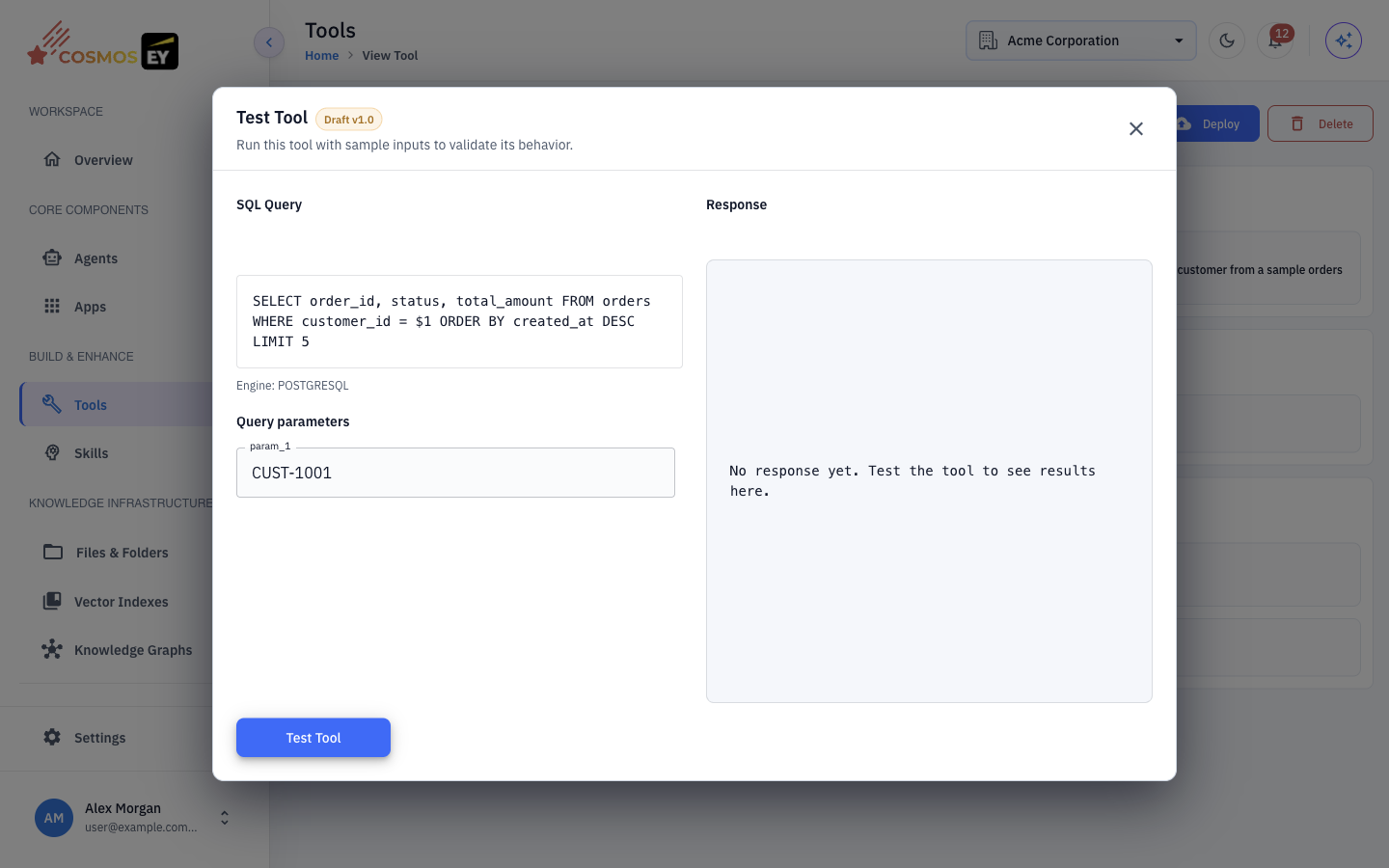
- Open the tool's detail page and click Test. In the Test Tool dialog, enter values for the Input Parameters and run the query. The Response shows the result.
- When the results look right, click Deploy. Only deployed tools appear in the DB tab when you attach tools to an agent.
Querying Files
Choose the Cosmos DB engine to query CSV or XLSX files instead of a database server. Click Select Source Files to pick files from Files & Folders, or click Download Sample File to see the expected layout. See Knowledge Base & Document Indexing for uploading files.
Supported Databases
| Engine | Typical default port | Placeholder style |
|---|---|---|
| PostgreSQL | 5432 | $1, $2 |
| MySQL | 3306 | ? |
| Oracle | 1521 | :name |
| SQL Server | 1433 | @name |
| Cosmos DB (files) | Not applicable | Not applicable |
Security Considerations
- Use a read-only database user with
SELECTaccess to only the tables the tool needs. - Limit query scope. Return only the columns and rows you need, and avoid
SELECT *on large tables. - Restrict network access. Allow connections only from the Cosmos environment.
- Review usage. Use Logs to see which agents call the tool and how often.
Tips & Best Practices
- One tool should answer one kind of question. Split complex joins into separate tools when that makes the agent's choice clearer.
- Filter on indexed columns so queries return quickly during conversations.
- Test with edge cases such as empty strings, long values, and special characters.
- To change a deployed query, click Edit, save the new draft, test it, and deploy it.